Phone Shows Charging but Battery Percentage Does Not Increase: Fix

Have you ever plugged your phone into a charger, seen the charging icon appear, and then discovered that the battery percentage is not increasing? It can be one of the most confusing smartphone problems because everything appears normal at first glance. The phone recognizes the charger, displays the charging symbol, and may even say “Charging,” yet the battery remains stuck at the same percentage for several minutes or even several hours.
Sometimes the percentage can actually decrease while the charger is connected, which makes the situation even more frustrating. The good news is that this problem does not automatically mean that your phone needs an expensive repair. A weak charger, damaged cable, dirty charging port, excessive power consumption, overheating, battery wear, software problems, or a fault in the charging circuit can all produce similar symptoms. Google’s current Android troubleshooting guidance recommends checking the charger, cable, power outlet, and charging port before moving toward more complicated solutions.
What Does It Mean When a Phone Says Charging but the Percentage Stays the Same?
When your phone displays a charging indicator, it generally means that the device has detected an external power source. That does not necessarily mean that enough electrical power is reaching the battery to increase its charge level. Think of it like filling a water tank while another pipe is draining water at almost the same rate.
Read More Cell Phone Crashing A Lot How To Solve It!
The tank may technically be receiving water, but its level does not rise because the incoming flow is being consumed elsewhere. Your smartphone can behave in a similar way: the charger supplies some power, but the display, processor, mobile network, games, background applications, and other components may consume nearly as much power as the charger provides. If the battery is already worn, the situation can become even more noticeable because the battery may not accept energy as efficiently as it once did.
Charging Icon Does Not Always Mean Fast Charging
A charging icon is a useful indication, but it is not a complete diagnostic test. A phone can detect a connected cable even when the charger is underpowered, the cable is damaged, or the connection is poor. Google specifically recommends trying another cable and power adapter and checking that the connection is secure. It also warns that incompatible or damaged accessories can result in very slow charging or no effective charging at all.
This is why replacing the charger with a known-good compatible charger should be one of the first tests rather than immediately replacing the battery. If the percentage starts increasing normally with another charger, you have already narrowed the problem down considerably.
Charging Versus Actual Battery Gain
There is also a difference between slow charging and no effective charging. If the battery moves from 30% to 31% after a reasonable period, the phone is probably receiving some usable power, even if charging is unusually slow. If it remains at 30% for hours, however, you should investigate further. If it drops from 30% to 25% while plugged in, the phone is consuming more energy than the charger is delivering, or there may be a charging-system problem.
The first step is therefore to stop guessing and perform simple controlled tests. Turn off unnecessary applications, connect a reliable charger directly to a wall outlet, leave the phone untouched for 15–30 minutes, and check whether the percentage changes. This simple test can tell you much more than repeatedly unplugging and reconnecting the cable.
Why Is My Phone Charging but Battery Percentage Not Increasing?
There is no single cause behind this problem. Smartphone charging involves the wall adapter, cable, charging connector, charging circuitry, battery management system, battery cell and operating system. A problem anywhere along that chain can produce similar symptoms. For that reason, technicians normally troubleshoot the problem from the easiest external component toward the internal hardware rather than immediately opening the phone.
Faulty or Weak Charger
The charger is one of the easiest things to test and one of the most common places to start. A damaged adapter may still provide enough power for the phone to recognize that something has been connected while delivering insufficient power for normal battery charging. Cheap or poorly matched adapters can also provide inconsistent charging performance. Google recommends using the appropriate power adapter and cable for the device and notes that other adapters may charge slowly or not at all.
Try another known-good charger and cable that are appropriate for your phone. Avoid judging the replacement only by whether the charging icon appears. Give the phone enough time to determine whether the percentage actually rises. If your original charger works normally with another compatible device but your phone does not charge correctly, the problem may be further down the charging chain.
Damaged Charging Cable
Charging cables experience considerable physical stress. They are bent, pulled, twisted, and frequently carried in pockets or bags. Internal conductors can become damaged while the outside of the cable still looks perfectly normal. A cable may therefore connect successfully but deliver much less power than expected.
Try a different high-quality cable before assuming that the phone itself is defective. Also, inspect both connectors for corrosion, dirt, bent contacts, or physical damage. If charging starts and stops when you gently move the cable, stop using that cable because the connection is unreliable. A loose connection can also generate heat and should not be ignored.
Dirty or Damaged Charging Port
Pocket lint and dust can accumulate inside a phone’s charging port. Even a relatively small amount can prevent the connector from seating correctly. Google specifically recommends checking that there is nothing, such as dust or lint, inside the charging port.
If you inspect the port, use good lighting and avoid aggressive tools. Do not force metal objects into the connector. If the port is heavily contaminated, physically damaged, or loose on the motherboard, professional cleaning or repair may be necessary.
Worn-Out or Defective Battery
A battery is a consumable component. As it ages, its capacity and charging performance can deteriorate. A worn battery may charge unusually slowly, lose percentage quickly, shut down unexpectedly, or behave inconsistently when connected to power.
If the phone is several years old and the problem appeared gradually rather than immediately after a software update or accidental damage, battery wear becomes more likely. A battery replacement may eventually be necessary, but it is better to confirm the other possibilities first.
Check the Charger, Cable, and Power Source
Before changing software settings or opening the phone, perform a complete external charging test. Connect the phone directly to a reliable wall outlet using a known-good charger and cable. Avoid testing through a computer USB port initially because computer ports may provide different charging performance. Also test another wall outlet if you suspect the original socket or extension board.
A useful technician-style test is to change only one variable at a time. For example, keep the phone and adapter the same but replace the cable. If that does not work, restore the original cable and replace the adapter. Then try a different wall outlet. This approach makes the fault easier to identify because you know exactly which component changed when the behavior changed.
Do not assume that a charger is good simply because another phone recognizes it. Different phones can have different charging requirements, and some devices can negotiate charging power differently. Google recommends trying another compatible power adapter and cable when troubleshooting Android charging problems.
If the phone begins charging normally after changing the charger or cable, there is usually no reason to open the phone. Replace the faulty accessory with a reliable, compatible one and monitor the device.
Clean the Phone Charging Port Safely
A dirty charging port can create a surprisingly convincing charging problem. The phone may show the charging animation because electrical contact is detected, but the physical connection may not be good enough for stable charging. This can be especially common on phones that are carried in pockets every day.
Start by disconnecting the charger and inspecting the port with a flashlight. Look for compacted lint, dust, or debris. Do not pour liquid into the port, and do not scrape aggressively with metal objects. If the connector appears physically bent, loose, or damaged, professional repair is safer than attempting to force it back into position.
After cleaning, reconnect the cable firmly and check whether the charging behavior changes. If the cable now fits more securely and the battery percentage begins rising normally, the port contamination was likely contributing to the problem.
Restart the Phone and Check for Software Problems
A software problem can sometimes cause the battery indicator to behave incorrectly even when the charging hardware is working. The operating system calculates and displays the battery state, manages charging behavior and controls background processes. A temporary system error can therefore create confusing symptoms.
Restart the phone before attempting more drastic solutions. On Android devices, Google recommends holding the power button for several seconds as a basic restart step during charging-related troubleshooting.
After restarting, connect the phone to a reliable charger and leave it alone for a while. If the percentage suddenly jumps after the restart, the device may have been displaying an inaccurate state rather than completely failing to charge.
You should also install available system updates when appropriate. However, do not assume that every charging problem is caused by software. If multiple chargers fail, the port is clean, the phone becomes unusually hot, and the percentage remains stuck, hardware becomes increasingly likely.
Stop Apps and Features That Consume Too Much Power
Imagine trying to fill a swimming pool while dozens of large drains are open at the same time. Charging a smartphone can work in much the same way. If the phone is running a demanding game, recording video, using navigation, maintaining a weak cellular connection, or running many background processes, its power consumption can become significant.
For testing purposes, close demanding applications and reduce screen activity. Put the phone into Airplane Mode temporarily if mobile connectivity is not required. You can also enable Battery Saver or Low Power Mode, where available.
Google recommends battery-saving features such as Battery Saver and Adaptive Battery on supported Android devices.
If the phone charges normally while idle but barely gains percentage while you are actively using it, the charger may simply be providing less power than the phone consumes. This does not necessarily indicate a defective battery. It may instead indicate an insufficient charging source combined with heavy device usage.
Check for Overheating and Charging Temperature
Heat can significantly affect charging behavior. Modern smartphones monitor temperature and can reduce or temporarily stop charging when conditions become too hot. This is a safety mechanism rather than necessarily a defect.
If the phone is hot while charging, remove thick cases temporarily, stop demanding applications, and place the device in a normal room-temperature environment. Do not put a hot phone in a freezer or use extreme cooling methods. Sudden temperature changes can create condensation and cause additional problems.
Google advises keeping Android devices cool and warns that excessive heat can accelerate battery drain and damage battery health.
If charging resumes normally after the phone cools down, the temperature was probably contributing to the problem. If the phone becomes extremely hot every time you connect a charger, however, stop treating it as a simple slow-charging issue. A damaged battery, cable, connector, or charging circuit may require professional inspection.
Check Battery Health and Charging Limits
Some phones deliberately limit charging to protect long-term battery health. This can make a perfectly healthy phone appear to have stopped charging. Apple’s current charging controls, for example, allow users on supported iPhone models to select a charge limit between 80% and 100%. When a limit is selected, the phone can stop charging around that level by design.
Therefore, if your phone repeatedly stops around 80%, 85%, 90% or another consistent level, check its battery settings before assuming the battery is defective. Optimized charging features can also intentionally delay charging under certain circumstances.
The important clue is consistency. A device that stops around the same configured limit is behaving differently from a device that randomly remains stuck at 23%, 47% or 62%. The first may be a charging-management feature; the second deserves deeper troubleshooting.
Test Whether the Phone Charges When Powered Off
One of the most useful troubleshooting tests is to charge the phone while it is powered off. Shut the device down completely, connect a known-good charger, and leave it connected for an appropriate period.
If the battery percentage rises normally while the phone is off but barely changes while the phone is running, excessive power consumption or software activity may be involved. If the percentage still does not increase while powered off, attention should shift toward the charger, cable, charging port, battery or charging circuitry.
Google’s Android troubleshooting guidance also recommends connecting the phone to a working charger and waiting before attempting to restart it, particularly when the battery may be deeply discharged.
This test does not identify the exact failed component, but it is an excellent way to separate some software and usage-related problems from more persistent charging faults.
Android-Specific Troubleshooting
Android phones from Samsung, Xiaomi, Redmi, Tecno, Infinix, Oppo, Vivo, Motorola, Google, and other manufacturers can have different charging menus and battery-management systems. The basic troubleshooting process remains similar: test the charger, test the cable, inspect the port, restart the phone, reduce power consumption, and check battery information.
If the phone supports Safe Mode, it can also be useful when you suspect a third-party application. Safe Mode temporarily prevents many downloaded applications from running, allowing you to see whether charging behavior improves. If the battery charges normally in Safe Mode but not during normal operation, investigate recently installed applications or unusually demanding background processes.
Android’s official guidance recommends checking the charger, cable, power source, and port as part of the initial troubleshooting process.
Avoid installing random “battery repair” applications that promise to physically repair a damaged battery. Software can display information or help identify battery usage, but it cannot repair a chemically degraded battery cell or a damaged charging IC.
iPhone-Specific Troubleshooting
iPhone users should first check the charging cable, power adapter, connector, and charging port. Then restart the iPhone and test charging again. If the phone stops at a specific percentage, inspect the Charging settings because supported iPhone models can use charging limits and optimized charging features.
Apple explains that supported iPhone models can have a configurable charge limit from 80% to 100%, and optimized charging is designed to reduce battery aging.
If your iPhone shows the charging symbol but the percentage does not move, try another compatible charging setup. If wired charging fails, testing a compatible wireless charging method, where supported, can also help isolate whether the cable or port is involved.
If wireless charging works but wired charging does not, the charging port, cable, or related circuitry becomes more suspicious. If neither charging method works properly, battery or board-level faults become more plausible.
When the Problem Is Probably Hardware
When you have tested multiple known-good chargers and cables, inspected the port, restarted the phone, and ruled out obvious software causes, hardware becomes a stronger possibility. Hardware faults can occur in the battery connector, charging port, charging IC, power-management circuitry, battery, or motherboard.
The symptom can be misleading. For example, a damaged charging port may still allow the phone to display a charging icon. A weak battery may accept some current but fail to maintain normal capacity. A charging circuit problem can also prevent proper current from reaching the battery.
Charging Port and Board Faults
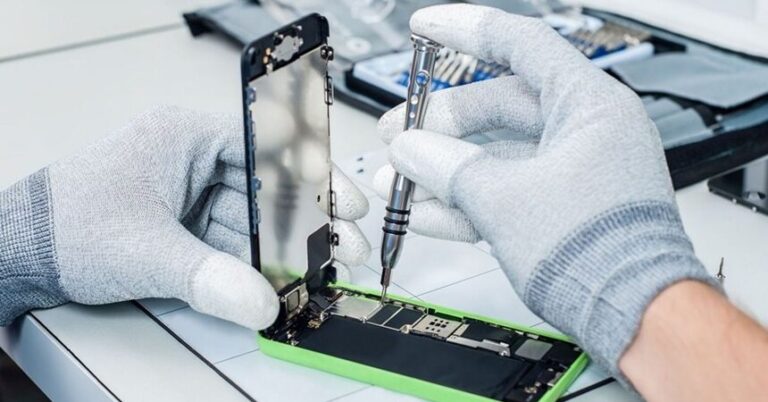
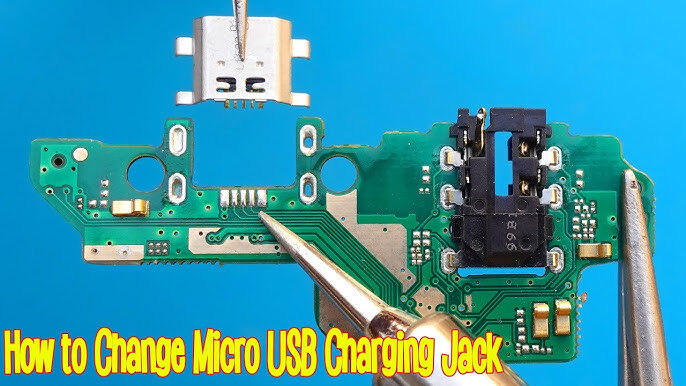
A technician can inspect the charging connector under magnification and test charging current and voltage using appropriate diagnostic equipment. On repairable devices, a damaged connector may be replaceable. Board-level faults require more specialized testing because the charging system can contain multiple components and protection circuits.
If the phone has suffered water exposure, physical impact or a previous poor-quality repair, the likelihood of internal damage increases. Corrosion can affect connectors and board components, while an improperly repaired charging port can create intermittent or unreliable charging.
At this stage, repeatedly plugging and unplugging the charger is unlikely to solve the underlying problem. A professional diagnosis can prevent unnecessary replacement of parts that are actually working.
What to Do If the Battery Percentage Is Decreasing While Charging
A battery percentage that drops while the phone says it is charging deserves attention. The simplest explanation is that the phone is consuming more energy than the charger provides. This can happen when the screen is constantly active, a demanding game is running, the device is hot, or the charging source is weak.
Start by turning the screen off and stopping demanding applications. Try a known-good compatible wall charger. If the battery begins increasing when the phone is idle, power consumption was likely a major factor.
If the percentage continues dropping while the phone is powered off and connected to a known-good charger, the situation is more concerning. The battery, charging port, charging circuit or another hardware component may require inspection.
Do not continue charging a device that becomes unusually hot, swells, smells abnormal or shows other signs of physical battery damage. A damaged lithium-ion battery should be handled by a qualified professional rather than opened or punctured at home.
What to Do If the Phone Stops at 80 Percent
A phone stopping at 80% is not automatically a battery failure. Many modern smartphones use charging-management technologies specifically designed to reduce battery aging. Apple’s current documentation confirms that supported iPhones can use a charge limit between 80% and 100%, while optimized charging can also delay or manage charging.
Check your phone’s battery or charging settings before replacing anything. Look for options such as Charge Limit, Battery Protection, Optimized Charging, Adaptive Charging, or similar terminology.
If the limit is intentionally configured, the behavior is normal. If the phone unexpectedly stops at different percentages and there is no charging limit configured, continue with the troubleshooting process.
When Should You Replace the Battery?
Battery replacement becomes more reasonable when the device has significant battery wear and symptoms such as rapid battery drain, unexpected shutdowns, very short runtime, swelling, or persistent charging problems. A battery that has been used heavily for years can naturally lose capacity.
However, replacing the battery simply because the charging percentage is stuck is not always the correct answer. The charger, cable, and port should be tested first. If the phone still refuses to charge properly with known-good accessories, professional testing can determine whether the battery is actually defective.
If your phone has a removable battery, replacement may be straightforward depending on the model. Modern phones with sealed batteries should generally be serviced by a qualified technician because opening the device can damage the display, seals, battery, or internal components.
Charging Problems You Should Not Ignore
Some charging symptoms are more serious than ordinary slow charging. Stop using the phone and seek professional assistance if you notice battery swelling, smoke, a burning smell, severe overheating, liquid damage or visible battery damage.
Do not puncture, bend, crush or attempt to open a lithium-ion battery. Do not use a visibly damaged cable that becomes extremely hot. Do not continue charging a phone that becomes dangerously hot every time it is connected.
A charging problem may sometimes be inexpensive to solve, but safety should come before troubleshooting. The goal is not simply to make the battery percentage rise; it is to restore reliable and safe power delivery.
Prevention Tips for Better Battery Charging
Good charging habits can reduce avoidable problems. Use a compatible and reliable charger, avoid severely damaged cables, keep the charging port reasonably clean and prevent the phone from becoming excessively hot during charging. Google recommends using the appropriate power adapter and keeping Android devices cool to support battery health.
Avoid constantly using the phone for demanding activities while charging if the device becomes hot. Gaming, video recording, and high-performance applications can generate significant heat and consume substantial power.
It is also unnecessary to repeatedly drain a modern smartphone battery completely just to “train” it. Google states that Android users do not need to repeatedly take the battery from full to zero to teach the device its capacity.
The simplest rule is this: protect the battery from unnecessary heat, use suitable charging accessories, and investigate unusual charging behavior early. Small problems are often easier and cheaper to solve before they become hardware failures.
Conclusion
When a phone shows charging but the battery percentage does not increase, do not immediately assume that the battery is dead. Start with the simplest possibilities: test another compatible charger, replace the cable, try another wall outlet, and inspect the charging port for debris. Then restart the phone, reduce background activity, allow the device to cool, and test charging while it is powered off. Official Android guidance follows a similar progression, beginning with the charger, cable, outlet, and charging port before moving toward deeper troubleshooting.
If the phone charges normally with a different accessory, you have probably found the source. If it only charges when powered off, software or excessive power consumption deserves attention. If it stops at a consistent percentage, such as 80%, check charging-limit and battery-protection settings because this can be intentional behavior on modern devices.
When multiple chargers and cables fail, and the battery percentage still refuses to increase, the problem may involve the battery, charging port, or internal charging circuitry. At that point, professional diagnosis is the safest approach. Treat unusual heat, swelling, burning smells, or visible battery damage as safety warnings rather than ordinary charging problems.
Frequently Asked Questions
1. Why does my phone say charging but stay at the same percentage?
The phone may be receiving some power but consuming nearly the same amount. A weak charger, damaged cable, dirty port, heavy application usage, overheating, battery degradation or a hardware fault can all cause this behavior. Start by testing a known-good charger and cable and charging the phone while it is idle.
2. Why is my battery percentage going down while charging?
Your phone may be consuming more power than the charger supplies. This can happen during gaming, high-performance tasks, poor cellular reception or overheating. If the percentage continues falling while the phone is powered off and connected to a known-good charger, a battery or charging-system problem becomes more likely.
3. Can a bad charging cable cause the battery percentage not to increase?
Yes. A damaged cable may allow the phone to detect a connection while delivering insufficient or unstable power. Testing another compatible, high-quality cable is one of the easiest ways to rule this out.
4. Why does my phone stop charging at 80%?
Some modern phones intentionally limit charging to protect long-term battery health. On supported iPhones, users can configure a charge limit between 80% and 100%, and optimized charging can also manage when charging occurs. Check your device’s battery settings before assuming that the battery or charger is defective.
5. When should I take my phone to a repair technician?
Professional diagnosis is recommended when several known-good chargers and cables produce the same problem, the charging port is physically damaged, the phone has suffered liquid or impact damage, or the battery becomes unusually hot or swollen. Internal charging faults can involve the battery, connector, charging IC or motherboard and should not be repaired by inexperienced users.