Only Official Released Binaries Are Allowed – Causes and Fixes (2026)
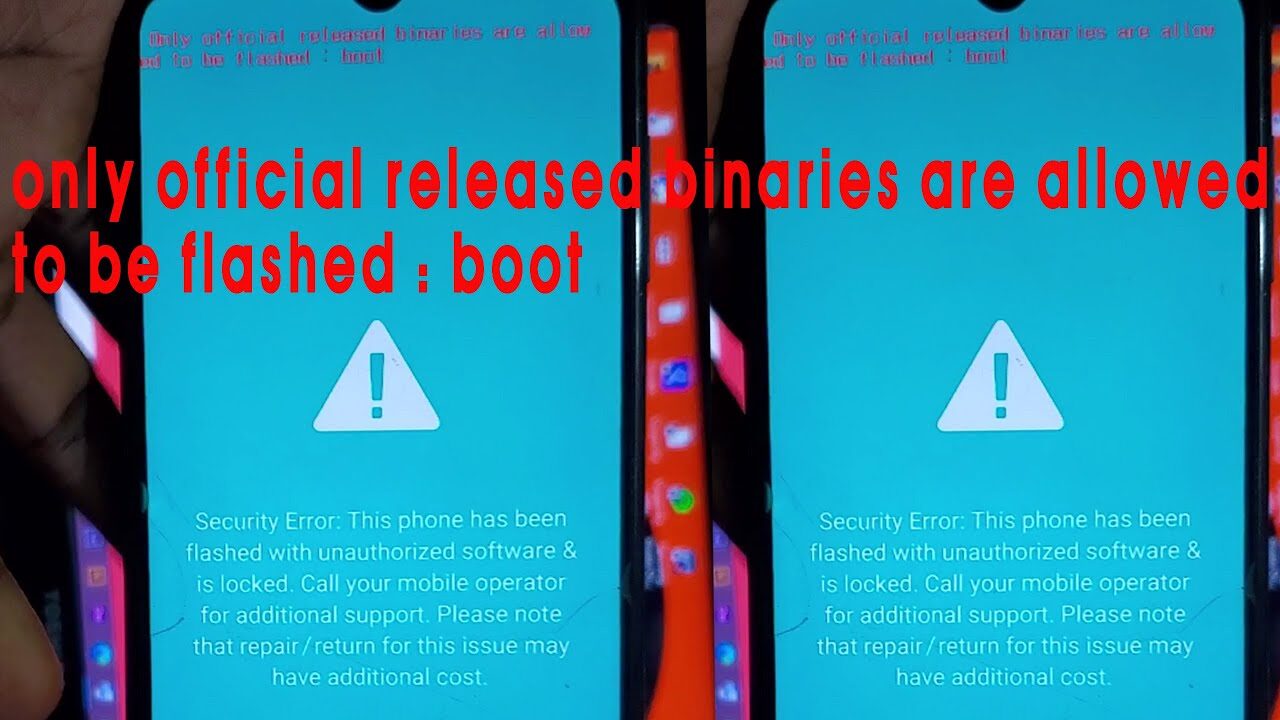
If you’ve tried flashing firmware on a Samsung Galaxy phone and suddenly encountered the red warning “Only Official Released Binaries Are Allowed”, you’re certainly not alone. This error continues to affect Samsung devices in 2026, especially when users attempt to install custom recovery images, patched firmware, or unofficial system files through Odin. Although the message appears alarming, it is actually a security feature designed to prevent unauthorized software from being installed on the device.
Samsung has significantly strengthened its security ecosystem through Knox, VaultKeeper, OEM Lock, KG (Knox Guard), and FRP (Factory Reset Protection). These security layers work together to ensure that only firmware digitally signed by Samsung can be flashed unless the bootloader has been properly unlocked. Recent community reports show that devices displaying KG STATUS: PRENORMAL or OEM LOCK: ON commonly trigger this message when users attempt to flash unofficial binaries.
The good news is that this problem is usually fixable. In most situations, the device isn’t permanently damaged or “hard bricked.” The solution depends on identifying exactly which security mechanism is blocking the flashing process.
What Does the Error Actually Mean?
When Samsung displays “Only Official Released Binaries Are Allowed”, the phone has rejected the firmware because its security verification failed. This usually happens before any system partition is modified, protecting the device from unauthorized changes.
The error may appear with different partition names such as:
| Error Message | Meaning |
|---|---|
| Only official released binaries are allowed (Recovery) | Custom recovery blocked |
| Only official released binaries are allowed (System) | Modified system image blocked |
| Only official released binaries are allowed (VBMETA) | Modified verified boot metadata rejected |
| FAIL! (Auth) in Odin | Authentication failed during flashing |
The exact wording depends on which partition Odin attempted to flash first. In most cases, Odin will also stop the flashing process immediately and display FAIL! (Auth) on the computer. Community reports consistently show that this behavior is closely tied to Samsung’s bootloader security and authentication checks.
Learn more Common Smartphone Mistakes That Damage Your Device
Unlike many Android manufacturers, Samsung requires proper authorization before accepting modified firmware. Even if a user has downloaded the correct firmware files, missing one prerequisite—such as OEM Unlock or a normal KG state—can cause the flashing process to fail.
Why Samsung Devices Display This Warning
Samsung’s security model has evolved considerably over the past several years. Beginning with Android 10 and continuing through One UI 8, the company introduced additional verification mechanisms that make unauthorized flashing much more difficult.
Several security features now work together:
- Knox Secure Boot
- OEM Lock
- Factory Reset Protection (FRP)
- KG (Knox Guard)
- VaultKeeper
- Android Verified Boot (VBMETA)
These technologies continuously verify whether the firmware being installed has been digitally signed by Samsung. If even one verification fails, the flashing process stops immediately.
Recent user reports also show that KG STATUS: PRENORMAL remains one of the most common reasons for this error. Devices in Prenormal status refuse custom binaries until Samsung’s security requirements are satisfied, such as internet activation and OEM unlocking where supported.
Common Causes of the Error
When the message “Only Official Released Binaries Are Allowed” appears, it is not random. It is triggered by specific security conditions inside Samsung’s firmware protection system. Understanding these causes is the key to fixing the issue without guessing or repeatedly flashing files that won’t work. In 2026, Samsung’s security stack has become even stricter, meaning even small mismatches can block flashing instantly.
Locked Bootloader
A locked bootloader is the most common reason behind this error. The bootloader is like the gatekeeper of your phone’s operating system. If it is locked, the device will only accept firmware that is officially signed by Samsung. Any attempt to install custom recovery, patched boot images, or modified firmware will be rejected immediately.
On many Samsung devices, especially carrier-locked models, the bootloader cannot be unlocked at all. Even global models require enabling OEM Unlock before flashing anything unofficial. If this step is skipped, Odin will fail and trigger the binary restriction error. In simple terms, a locked bootloader is like a security guard refusing entry to anything not on the approved list.
OEM Lock Enabled
The OEM Lock setting inside Developer Options is another major factor. When OEM Lock is turned ON, the device actively blocks bootloader modifications and unauthorized firmware flashing.
Many users unknowingly leave this enabled when trying to flash firmware using Odin. Even if the correct firmware is used, the system still rejects it because the device is in a protected state. In newer Samsung updates, OEM Lock can also re-enable itself after a factory reset or long inactivity period, which confuses many users who previously had flashing access.
KG / RMM Prenormal State
One of the most frustrating triggers is KG (Knox Guard) or RMM state set to “Prenormal.” This security condition is designed to prevent tampering shortly after a device reset or activation.
When a phone is in KG Prenormal, Samsung temporarily blocks bootloader unlocking and custom flashing for a security observation period. During this time, even legitimate firmware flashing attempts can fail with the “Only Official Released Binaries” error.
Typically, the device must remain online with a valid SIM card for several days before KG status switches to “Normal.” Until then, Odin will refuse modified binaries. This is one of the most misunderstood causes because users assume the firmware is faulty when the real issue is a temporary security lock.
FRP Lock Issues
Factory Reset Protection (FRP) can also trigger similar flashing restrictions. FRP is tied to the Google account previously synced on the device. If a factory reset was performed without removing the account, the phone enters a protected state.
In FRP-locked devices, Samsung restricts unauthorized firmware changes to prevent bypass attempts. Even if Odin recognizes the device, it may still block flashing and display the binary restriction error.
This is especially common in second-hand phones where the previous owner did not properly remove their Google account before selling the device.
Incorrect or Incompatible Firmware
Another overlooked cause is simply using the wrong firmware package. Samsung firmware is highly specific. It must match:
- Exact model number (e.g., SM-A057F vs SM-A057M)
- Region/country code (CSC)
- Bootloader version (binary revision)
If any of these do not match, Odin will reject the flash process. For example, trying to downgrade firmware to a lower bootloader version will immediately trigger the “Only Official Released Binaries Are Allowed” message.
Even experienced technicians sometimes make this mistake when mixing firmware versions across regions.
How to Fix “Only Official Released Binaries Are Allowed”
Fixing this error depends entirely on identifying the root cause. There is no universal single-click solution, but there is a reliable step-by-step approach that works in most cases.
Flash Official Samsung Firmware
The safest and most effective method is to reinstall official Samsung firmware using Odin.
Start by downloading the exact firmware for your model from a trusted source. Ensure the binary version matches or is higher than the installed one. Then:
- Boot device into Download Mode
- Open Odin on PC
- Load BL, AP, CP, and CSC files
- Start flashing without modifying any settings
If the device is not modified beyond recovery, this method restores normal functionality and removes the error. It also resets corrupted partitions that may be blocking boot validation.
Enable OEM Unlock (If Available)
If your device still allows access to Developer Options, enabling OEM Unlock is critical.
To do this:
- Go to Settings > Developer Options
- Enable OEM Unlock
- Reboot the device
However, if the toggle is missing or greyed out, it usually means the device is in KG Prenormal state. In that case, you must wait until Samsung allows unlocking again.
Check KG Status
You can verify KG status directly in Download Mode. If you see:
- KG STATE: NORMAL → flashing is allowed (with unlock)
- KG STATE: PRENORMAL → flashing is blocked
If the device is in Prenormal state, the only legitimate fix is to keep the device online for several days using mobile data and Samsung services until it switches to Normal. No software tool can instantly bypass this state in modern Samsung firmware.
Update Odin Tool
Using an outdated version of Odin is another hidden cause of flashing failures. Newer Samsung devices require updated authentication protocols.
Always use the latest stable Odin version compatible with your device generation. Older versions may fail to verify binaries correctly, resulting in misleading error messages like “Only Official Released Binaries Are Allowed.”
Preventing the Error in the Future
Avoiding this issue is easier than fixing it. Most users encounter it because they rush into flashing without checking prerequisites.
Best Practices Before Flashing
Before using Odin or any flashing tool:
- Always check model number twice
- Confirm bootloader version compatibility
- Verify KG and OEM status
- Ensure battery is above 60%
- Use original USB cable and stable USB port
Skipping these steps significantly increases the chance of triggering security blocks.
Verify Firmware Compatibility
Never mix firmware from different regions unless you fully understand CSC behavior. Samsung devices are highly sensitive to mismatched regional software.
A good rule is simple: always match firmware exactly to your device model and region. Even small differences can cause authentication failure during boot verification.
Frequently Asked Troubleshooting Questions
Can the Phone Be Recovered?
Yes, in most cases the device can be recovered using official firmware flashing. Only severely corrupted bootloaders or hardware failures require professional repair.
Is Data Lost?
Yes, flashing firmware usually wipes user data, especially when using CSC instead of HOME_CSC. Always back up before attempting fixes.
When Professional Repair Is Needed
If the device remains stuck in Download Mode with repeated authentication failures even after flashing correct firmware, professional service may be required.
Conclusion
The “Only Official Released Binaries Are Allowed” error is not a random failure but a deliberate Samsung security mechanism. It protects the device from unauthorized modifications, but it can be frustrating when triggered unexpectedly. Most cases are linked to bootloader restrictions, KG state, OEM lock, or incorrect firmware usage.
Once you understand how Samsung’s security layers interact, the error becomes much easier to diagnose and fix. In many situations, simply using correct firmware or waiting for KG state normalization is enough to restore full functionality without advanced tools.
FAQs
1. Why does Odin show “Only Official Released Binaries Are Allowed”?
This happens when Samsung security blocks unofficial or incompatible firmware from being flashed.
2. Can I bypass KG Prenormal mode?
Not directly. You must wait until the device automatically switches to Normal state.
3. Does flashing official firmware remove the error?
Yes, if the firmware matches your exact model and binary version.
4. Why is OEM Unlock missing?
It usually means the device is in KG Prenormal or FRP locked state.
5. Is this error a sign of a bricked phone?
No, in most cases the device is not bricked and can be recovered.