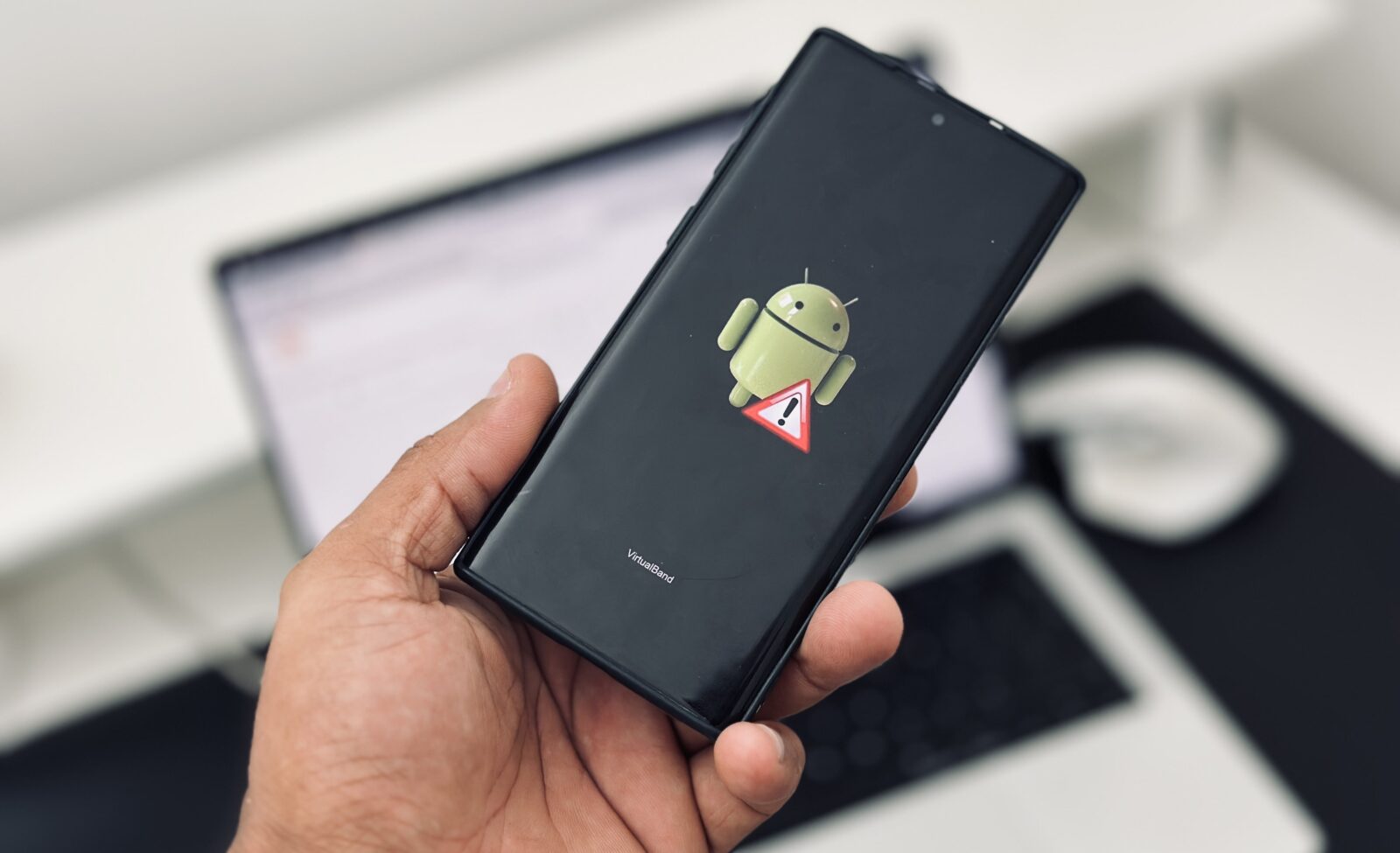
Android Phone -Smartphones have become the engine rooms of modern life. From online banking and gaming to video editing and business communication, Android phones now handle tasks that once required a computer. But after months or years of use, even the fastest Android device can begin to feel sluggish. Apps take longer to open, games start lagging, the battery drains quickly, and simple scrolling becomes frustrating. The good news is that you do not need to buy a new device immediately to fix these issues.
Recent Android optimization trends in 2026 show that performance improvements increasingly rely on software efficiency, AI-powered optimization, and smarter memory management instead of just raw hardware power. Google has also introduced deeper Android system optimizations aimed at improving speed and battery life across devices.
Why Android Phones Slow Down Over Time
Android phones are like busy highways. When too many cars pile onto the road at the same time, traffic slows down. The same thing happens inside your smartphone. Every app, file, background process, cached image, and system task competes for storage, memory, and processing power. Over time, these digital traffic jams make your device slower and less responsive.
One major reason Android devices lose speed is excessive background activity. Many apps continue running even after you close them. Social media apps, messaging tools, shopping apps, and streaming platforms constantly refresh data in the background. This consumes RAM and CPU resources without you realizing it. According to recent Android optimization guides, reducing background activity can significantly improve responsiveness and reduce lag.
Storage also plays a huge role in device performance. Android phones work best when at least 15–20% of internal storage remains free. When storage becomes full, the operating system struggles to manage temporary files and app data efficiently. Think of it like trying to work inside an overcrowded room where there is barely space to move. The system becomes slower because it has less room to operate smoothly.
Another hidden performance killer is outdated software. Older Android versions may contain bugs, memory leaks, or inefficient resource management. Modern Android updates now focus heavily on performance optimization, AI efficiency, and battery management improvements. Keeping your phone updated can often deliver noticeable speed improvements without any hardware upgrade.
Restarting Your Phone Can Boost Speed
Sometimes the simplest solutions are the most powerful. Restarting your Android phone may sound too basic to matter, but it works surprisingly well. When you reboot your device, temporary background processes shut down, system memory gets refreshed, and unnecessary tasks are cleared automatically.
Think of your phone like a tired employee working nonstop for weeks. Without rest, performance drops. Restarting acts like a quick vacation for your device. It gives the operating system a clean slate to begin again. Many users leave their phones running continuously for weeks or months, allowing memory clutter and background processes to build up over time.
Modern Android systems are smarter than before, but apps still leave behind temporary processes that consume RAM unnecessarily. Restarting clears these hidden processes instantly. It also helps fix random glitches, overheating problems, app freezing, and connectivity issues.
Experts now recommend restarting Android phones at least once every few days to maintain smooth performance. Even flagship devices benefit from regular reboots. If your phone suddenly feels laggy, restarting should always be your first troubleshooting step before trying advanced optimization methods.
Free Up Internal Storage
Storage management remains one of the most effective ways to improve Android phone performance. A nearly full phone behaves like an overloaded backpack. Every task becomes heavier, slower, and more frustrating. Android devices need free space to manage cached files, temporary system data, updates, and app operations efficiently.
Delete Unused Apps
Many people install apps they barely use. Games, shopping apps, editing tools, and trial software quietly sit in the background consuming storage and sometimes running hidden services. Removing unused apps immediately frees up resources and improves responsiveness.
Here is a simple guide for storage cleanup:
| Storage Problem | Recommended Solution | Performance Impact |
|---|---|---|
| Unused apps | Uninstall unnecessary apps | Faster app loading |
| Full photo gallery | Use cloud backup | More free storage |
| Large downloads | Delete old files | Improved responsiveness |
| Duplicate files | Use file cleaner tools | Better storage efficiency |
Android optimization reports in 2026 consistently recommend keeping at least 15% free storage for optimal performance.
Move Photos and Videos to Cloud Storage
Photos and videos are usually the biggest storage consumers. High-resolution cameras create massive files that quickly fill internal memory. Cloud platforms like Google Photos allow you to back up media and remove local copies safely.
This creates more breathing room for your phone. When storage pressure decreases, Android can manage resources more effectively, resulting in faster performance across apps and system tasks.
Clear Cached Data for Better Performance
Cache files are temporary data stored by apps to help them load faster in the future. While caching improves efficiency initially, excessive cache buildup eventually becomes counterproductive. Corrupted or outdated cache files can slow apps down, cause freezing, and increase lag.
Imagine your kitchen drawer stuffed with old receipts, expired coupons, and unnecessary papers. At first, it may seem organized, but eventually finding anything useful becomes difficult. Cache files work similarly. Too much clutter reduces efficiency.
Android users can clear cache through:
Settings → Apps → Storage → Clear Cache
Apps like browsers, social media platforms, and streaming services accumulate massive cache files over time. Clearing them regularly can instantly improve responsiveness without deleting important personal data.
Recent Android speed optimization guides highlight cache cleanup as one of the most effective maintenance habits for older phones.
Still, avoid clearing cache obsessively every day. Android uses caching to improve efficiency. A balanced approach works best — clearing cache every few weeks or when apps become sluggish.
Update Android and Applications Regularly
Software updates are no longer just about security patches. In 2026, Android updates increasingly focus on AI optimization, smarter resource management, smoother animations, and battery efficiency. Google has introduced deeper Android kernel optimizations that improve app launches and overall responsiveness.
App developers also release regular performance updates. Outdated apps may contain bugs, memory leaks, or compatibility issues that negatively affect your phone. Keeping apps updated ensures they run more efficiently on modern Android versions.
Some users avoid updates because they fear slower performance. While this occasionally happens on extremely old devices, most modern Android updates improve stability and responsiveness. Security improvements also help prevent malicious apps or malware from consuming system resources secretly.
To maximize performance:
- Update Android regularly
- Keep apps updated from the Google Play Store
- Remove abandoned apps that no longer receive updates
- Avoid downloading APKs from unknown sources
Modern Android versions also use AI-powered optimization tools to predict usage patterns and improve responsiveness automatically. Google recently introduced contextual suggestions and smarter predictive computing features designed to improve overall user experience.
Reduce Animations for Faster Navigation
One of the easiest ways to make your Android phone feel dramatically faster is reducing animation speed. Animations look beautiful, but they also consume processing power. When opening apps, switching screens, or navigating menus, Android uses animated transitions that can create a perception of slowness.
Reducing animation scales does not increase hardware performance directly, but it makes the interface feel snappier and more responsive. It is like replacing a slow automatic door with a fast sliding one. The journey stays the same, but it feels much quicker.
Enable Developer Options
To unlock advanced settings:
- Open Settings
- Go to About Phone
- Tap Build Number seven times
Developer Options will become available.
Change Animation Scale Settings
Inside Developer Options:
- Window Animation Scale → 0.5x
- Transition Animation Scale → 0.5x
- Animator Duration Scale → 0.5x
Some users even disable animations entirely for maximum speed. Android optimization experts consistently recommend this tweak for older or mid-range devices.
Control Background Apps
Background apps quietly drain RAM, battery life, and processor power. Many apps continue syncing data, tracking location, refreshing notifications, and running hidden services even when you are not actively using them.
Modern Android systems manage background apps better than older versions, but excessive multitasking still hurts performance — especially on devices with limited RAM. Social media apps are particularly resource-heavy because they constantly refresh feeds, upload analytics, and check for new notifications.
Battery optimization settings can help reduce unnecessary activity. Android allows users to restrict apps from running freely in the background. This not only improves speed but also extends battery life significantly.
To optimize background usage:
- Restrict unused apps
- Disable auto-start permissions
- Remove unnecessary widgets
- Limit background sync
- Turn off unused location services
Performance experts also warn against using aggressive “task killer” apps. Android already manages memory intelligently, and constantly force-closing apps can sometimes worsen performance instead of improving it.
Improve Gaming Performance on Android
Mobile gaming has exploded in popularity, and Android phones now handle console-quality graphics. But gaming also pushes hardware to its limits. Lag, frame drops, overheating, and battery drain are common problems during extended gaming sessions.
Gaming performance depends heavily on heat management. When phones become too hot, processors automatically slow down to prevent damage. This process is called thermal throttling. Recent Android gaming optimization reports emphasize that keeping your device cool dramatically improves stable performance.
Prevent Overheating
To reduce heat while gaming:
- Avoid charging while gaming
- Remove thick phone cases
- Lower graphics settings
- Close background apps
- Avoid direct sunlight
Use Game Booster Features
Many Android brands now include built-in gaming modes. Devices from Samsung, Xiaomi, and OnePlus offer tools that optimize CPU usage, block notifications, and improve frame stability during gaming sessions.
Budget Android phones are also receiving better gaming optimizations in 2026 thanks to newer Snapdragon chipsets delivering significant performance improvements.
Use Lightweight Apps Instead of Heavy Alternatives
Not every app is built efficiently. Some apps consume enormous amounts of memory, storage, and processing power. Heavy apps often include excessive animations, advertisements, trackers, and unnecessary background services.
Lightweight alternatives can dramatically improve performance on slower devices. Browser-based web apps, lite social media apps, and simplified launchers reduce system strain while still delivering core functionality.
For example:
| Heavy App Type | Lightweight Alternative |
|---|---|
| Full social media apps | Lite versions |
| Heavy launchers | Minimal launchers |
| Large browsers | Lightweight browsers |
| Advanced editors | Simple editing apps |
This approach works especially well on older Android devices with limited RAM or entry-level processors.
Remove Widgets and Live Wallpapers
Widgets and live wallpapers may look attractive, but they constantly consume resources in the background. Weather widgets refresh automatically, live wallpapers render animations continuously, and smart widgets sync data throughout the day.
A cluttered home screen behaves like an overcrowded desk. It becomes harder for the system to operate efficiently. Simplifying your home screen reduces CPU usage and battery drain while improving responsiveness.
Static wallpapers consume far fewer resources than animated alternatives. Removing unnecessary widgets also decreases background activity significantly. This small change often produces noticeable speed improvements on budget or aging Android phones.
Keep Your Phone Cool
Heat is one of the biggest enemies of smartphone performance. Processors slow themselves down automatically when temperatures rise too high. This protective mechanism prevents damage but also causes lag and reduced responsiveness.
Modern Android phones are incredibly powerful, but even flagship devices struggle under excessive heat. Heavy gaming, multitasking, direct sunlight, poor ventilation, and charging during intensive usage all contribute to overheating.
To maintain optimal temperature:
- Avoid direct sunlight
- Remove phone cases during gaming
- Use certified chargers
- Avoid multitasking excessively while charging
- Keep apps updated
Cooling your phone improves both short-term performance and long-term battery health. Think of your processor like an athlete. A cool environment helps it perform at maximum potential consistently.
Factory Reset as a Last Resort
Sometimes performance problems become too severe for simple fixes. Years of app installations, corrupted settings, malware, and leftover system files may create deep software clutter. In these cases, a factory reset can restore your phone to near-original performance.
A factory reset completely erases apps, settings, and files, giving Android a fresh start. Many users are shocked by how much faster their phones feel afterward. It is similar to cleaning out an entire garage instead of organizing individual shelves.
Before resetting:
- Backup important files
- Save contacts and passwords
- Sync photos to cloud storage
- Remove Google accounts properly
Factory resets should only be used after trying all other optimization methods because they require full device setup afterward.
Best Android Performance Tips for 2026
Android optimization trends in 2026 focus heavily on AI-driven efficiency, smarter resource management, and predictive computing. Google’s latest Android improvements increasingly rely on machine learning and contextual optimization to improve responsiveness automatically.
Here are the best modern performance practices:
| 2026 Performance Tip | Benefit |
|---|---|
| Keep storage 20% free | Faster system responsiveness |
| Reduce animation scales | Faster navigation feel |
| Use AI battery optimization | Better app management |
| Limit background apps | Lower RAM usage |
| Keep software updated | Improved stability |
| Avoid overheating | Stable gaming performance |
| Use lightweight apps | Lower system strain |
Android phones today are smarter than ever before. New optimization technologies like AI-driven contextual suggestions and system-level performance tuning continue pushing Android performance forward.
Conclusion
Improving Android phone performance does not require advanced technical skills or expensive upgrades. Most slowdowns come from everyday habits — overloaded storage, excessive background apps, outdated software, and overheating. Small adjustments can transform a sluggish device into a much smoother and more enjoyable experience.
Restarting your phone regularly, freeing storage space, clearing cache, reducing animations, and managing background apps are among the simplest yet most effective optimization methods available today. Modern Android versions also provide smarter AI-driven performance tools that automatically improve efficiency behind the scenes.
Instead of rushing to buy a new smartphone, try optimizing the device you already own. You may be surprised by how much speed and responsiveness you can recover with just a few smart changes.
FAQs
1. Why is my Android phone suddenly so slow?
Sudden slowdowns usually happen because of low storage space, overheating, excessive background apps, outdated software, or corrupted cache files. Restarting the device and clearing storage often fixes the issue quickly.
2. Does clearing cache improve Android performance?
Yes. Clearing excessive cache removes temporary files that may become corrupted or outdated. This can improve app responsiveness and reduce lag, especially for browsers and social media apps.
3. Is it safe to use Developer Options?
Yes, but users should avoid changing advanced settings they do not understand. Reducing animation scales is generally safe and can make phones feel much faster.
4. How much free storage should an Android phone have?
Experts recommend keeping at least 15–20% of storage free for optimal performance. Phones with completely full storage often become significantly slower.
5. Should I use phone cleaner apps?
Most cleaner apps are unnecessary. Android already includes built-in optimization tools. Some cleaner apps may even consume additional resources and reduce performance instead of improving it