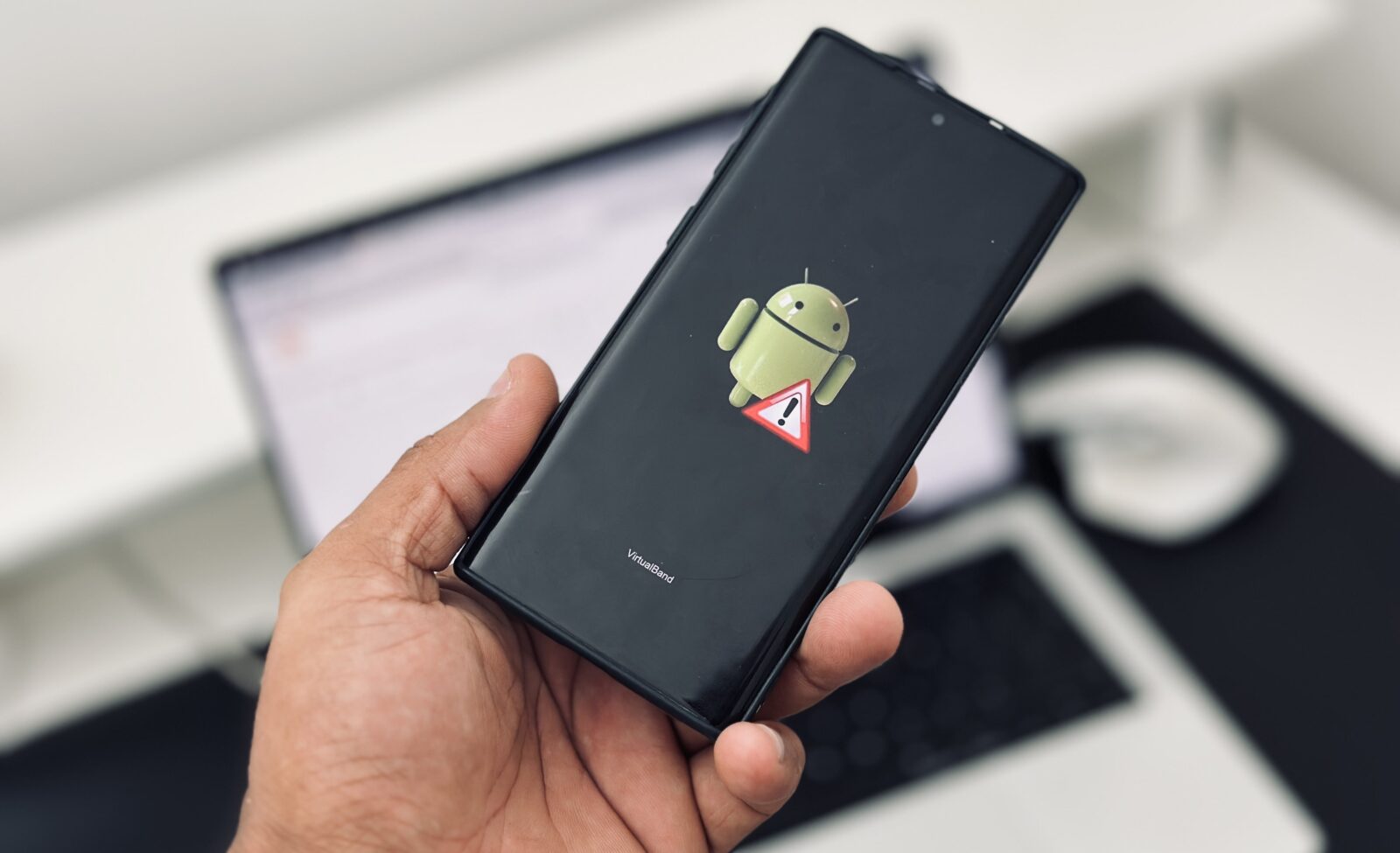
An Android phone stuck on the boot logo feels like being trapped in traffic with no exit. The screen lights up, the logo appears, and then… nothing happens. Your phone keeps restarting or freezes on the startup screen endlessly. It’s one of the most frustrating problems Android users face because it often happens unexpectedly. One moment your phone works perfectly, and the next moment it refuses to go beyond the logo screen.
The good news is that a boot logo problem does not always mean your phone is dead. In many cases, the issue is caused by software corruption, failed updates, buggy apps, or temporary system glitches. Recent reports in 2026 showed that even flagship devices like Samsung Galaxy S22 and Google Pixel phones experienced widespread boot loop problems after software updates. That means this issue is not limited to old or cheap smartphones. Even premium Android devices can get stuck during startup.
This guide will walk you through every effective solution step by step. Whether you use a Samsung Galaxy, Xiaomi Redmi, Google Pixel, OnePlus, Oppo, Vivo, or Motorola device, the methods explained here can help revive your phone. Think of this article like a repair toolkit for your Android device. Some fixes are quick and harmless, while others are advanced and require careful attention. By the end, you’ll know exactly what causes boot logo issues and how to solve them safely.
Understanding the Android Boot Logo Problem
What Is a Boot Loop?
A boot loop happens when your Android phone repeatedly restarts during the startup process without fully loading the operating system. Instead of reaching the home screen, the phone gets trapped in a continuous cycle. You might see the Samsung logo, Google logo, Mi logo, or another startup animation over and over again. Imagine a car engine starting but shutting down before it can actually move. That’s essentially what happens inside the phone’s software.
There are different types of boot problems. Some devices freeze permanently on the logo screen. Others restart every few seconds. In more serious cases, phones automatically enter Recovery Mode or Fastboot Mode. According to recent Android repair reports published in 2026, failed OTA software updates remain one of the leading causes of boot loops across Android devices. This became especially common after Android 15 and Android 16 updates rolled out globally.
The symptoms can vary depending on the cause. If your phone briefly reaches the lock screen before crashing again, the problem may come from a corrupted app or damaged user data. If the phone cannot even pass the manufacturer logo, the issue is often related to firmware corruption or partition damage. Understanding the difference matters because it helps determine the safest fix.
Signs Your Android Phone Is Stuck During Startup
Recognizing the warning signs early can prevent more serious damage. Many users panic and repeatedly force restart the device, which sometimes worsens the issue. Your phone may show one or more of these symptoms:
| Symptom | Possible Cause |
|---|---|
| Frozen manufacturer logo | Corrupted firmware |
| Endless restarting | Failed system update |
| Stuck on boot animation | App conflict |
| Recovery Mode loop | Damaged Android partition |
| Fastboot Mode only | Bootloader issue |
Some devices also become unusually hot while stuck in a boot loop. Others drain battery rapidly because the processor keeps trying to restart the operating system. Recent reports from Android users on Reddit showed many Samsung Galaxy owners experiencing overheating alongside repeated restart problems after updates.
One important thing to remember is that not all startup issues are software-related. Sometimes failing internal storage chips or motherboard problems can trigger boot loops too. Phones older than four or five years are especially vulnerable to hardware-related startup failures. Still, software remains the most common culprit, which means many devices can be repaired at home without professional help.
Main Reasons Why Android Phones Get Stuck on the Boot Logo
Failed Software Updates
Software updates are supposed to improve your phone, but sometimes they create chaos instead. A failed update can corrupt important system files, leaving Android unable to complete the boot process. This problem became highly visible in 2026 after several Google Pixel and Samsung Galaxy users reported devices getting trapped on the startup logo immediately after installing security patches.
Updates can fail for several reasons. The battery might die during installation. Storage space may be too low. Internet interruptions can corrupt downloaded files. Some updates also contain hidden bugs that manufacturers fail to detect before release. That’s why even expensive flagship devices occasionally become unusable after official updates.
Phones with nearly full storage are especially vulnerable. Android needs temporary working space during system installation. If there isn’t enough free storage, files may become corrupted midway through the process. One Pixel user reported their phone entered a constant boot loop after reaching over 95% storage capacity during an update.
Corrupted Apps and Malware
Not every boot loop comes from Android itself. Sometimes third-party apps are responsible. Poorly coded apps, malware, or modified APK files can interfere with startup services. If an app crashes repeatedly during boot, Android may fail to finish loading completely.
This often happens after installing apps from unofficial websites. Many users download cracked apps, modified games, or fake optimization tools without realizing they contain dangerous code. Once installed, these apps can damage system files or overload memory during startup.
Malware-related boot loops have become increasingly common because cybercriminals target Android users with fake APK downloads. Imagine inviting a thief into your house and then wondering why everything suddenly breaks. Unsafe apps work the same way. One bad installation can destabilize the entire operating system.
Rooting and Custom ROM Problems
Android enthusiasts love customization, but rooting and flashing custom ROMs always carry risks. If something goes wrong during flashing, the phone may fail to boot properly. Incomplete installations, incompatible ROM versions, or broken Magisk modules are among the most common causes.
Think of rooting like modifying a car engine. Skilled mechanics can improve performance, but one mistake can stop the vehicle entirely. Android customization works similarly. A single corrupted module or incompatible kernel can send your device into an endless restart cycle.
Many advanced users experience boot loops after experimenting with beta Android builds or unofficial firmware. Even experienced technicians occasionally encounter startup failures after flashing recovery images or custom operating systems.
Hardware Failure
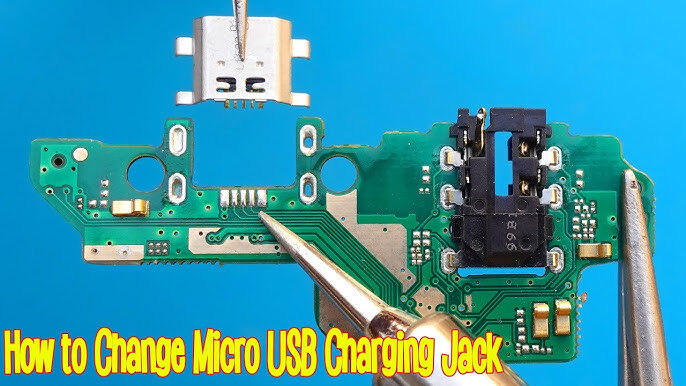
Sometimes software fixes won’t work because the real problem lies inside the hardware. Damaged storage chips, faulty batteries, overheating processors, or motherboard issues can all prevent Android from booting normally.
Phones that suddenly reboot randomly before getting stuck on the logo often show early signs of hardware failure. Water damage also plays a major role. Even tiny amounts of moisture can slowly corrode motherboard connections over time.
Hardware boot loops are harder to repair at home because they usually require specialized tools and replacement parts. If your phone cannot enter Recovery Mode, Fastboot Mode, or charge properly, hardware damage becomes more likely.
First Things to Do Before Attempting Advanced Repairs
Charge the Phone Properly
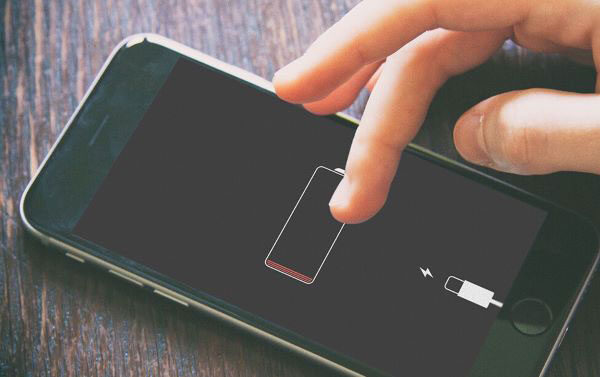
Before trying complicated repair methods, charge the phone fully. It sounds simple, but many Android startup issues happen because the battery voltage becomes unstable. Deep battery discharge can cause Android to freeze during boot.
Use the original charger whenever possible. Cheap or damaged charging cables may not provide enough power during startup recovery. Let the phone charge for at least 30 minutes before attempting to restart it.
Recent Android repair testing in 2026 showed that many “dead” phones actually recovered after proper charging procedures were followed. Some devices need extended charging time before they can reboot successfully after battery depletion.
Force Restart the Device
A forced restart clears temporary glitches and can sometimes break the boot loop cycle instantly. Different brands use different key combinations:
- Samsung: Hold Power + Volume Down
- Xiaomi: Hold Power button for 15 seconds
- Pixel: Hold Power + Volume Down
- OnePlus: Hold Power button for 10–15 seconds
Think of a force restart like rebooting a frozen computer. It interrupts faulty processes and gives Android another chance to load properly.
If the phone restarts normally afterward, the issue was likely temporary. If the boot logo returns again, continue with deeper troubleshooting methods.
Booting Android Into Safe Mode
How Safe Mode Helps Detect Problematic Apps
Safe Mode disables third-party applications and loads only essential Android services. This makes it incredibly useful for identifying app-related boot problems. If the phone works normally in Safe Mode, a recently installed app is almost certainly causing the issue.
To enter Safe Mode on most Android devices:
- Power on the phone
- When the logo appears, hold Volume Down
- Keep holding until the lock screen appears
If Safe Mode works, uninstall suspicious apps immediately. Focus on recently installed apps, cleaning tools, battery savers, cracked games, or modified APK files.
Recent Android repair guides published in 2026 confirmed that Safe Mode remains one of the safest and most effective non-destructive solutions for Android boot loops. It’s always smarter to try Safe Mode before performing factory resets or flashing firmware.
Using Recovery Mode to Fix Boot Logo Issues
Wipe Cache Partition
Recovery Mode gives access to advanced repair options even when Android cannot boot normally. One of the safest options is wiping the cache partition. This removes temporary system files without deleting personal data.
To enter Recovery Mode:
- Turn off the phone completely
- Hold Power + Volume Up
- Release buttons when Recovery Mode appears
Select Wipe Cache Partition using volume keys and confirm with the power button.
Some newer Samsung devices no longer display the wipe cache option because Android now handles cache management automatically. Still, older devices may benefit greatly from clearing corrupted cache files.
Cache corruption acts like clutter inside a machine. Temporary files pile up until Android struggles to function properly. Clearing them often restores stability after failed updates.
Perform a Factory Reset
If Safe Mode and cache wiping fail, a factory reset becomes the next option. This erases all user data but often fixes severe software corruption.
Inside Recovery Mode:
- Select Wipe Data/Factory Reset
- Confirm the action
- Wait for Android to reinstall core settings
A factory reset should be considered a last resort because it deletes apps, photos, videos, and messages stored internally. However, it remains one of the most effective fixes for persistent boot loops.
Statistics from Android repair communities in 2026 show factory resets successfully resolve many post-update startup problems, especially on Pixel devices affected by recent Android 16 boot loop bugs.
Flashing Stock Firmware on Android
Tools Needed for Flashing
Flashing stock firmware reinstalls Android completely. This process replaces damaged system files with fresh official firmware from the manufacturer.
Popular flashing tools include:
| Brand | Flash Tool |
|---|---|
| Samsung | Odin |
| Xiaomi | Mi Flash Tool |
| Pixel | Android Flash Tool |
| OnePlus | MSM Download Tool |
You’ll also need:
- USB cable
- Computer
- Correct firmware package
- Device drivers
Flashing firmware is like reinstalling Windows on a broken computer. It removes corrupted software and restores factory functionality.
Risks and Precautions Before Flashing
Flashing can permanently damage the phone if performed incorrectly. Installing wrong firmware versions may brick the device completely. Always verify the exact model number before downloading firmware.
Avoid random firmware websites because modified files may contain malware or corrupted partitions. Use official manufacturer firmware whenever possible.
Never disconnect the USB cable during flashing. Interruptions can corrupt bootloader partitions and make recovery much harder.
Fixing Samsung, Xiaomi, and Pixel Boot Loop Problems
Samsung Galaxy Recovery Tips
Samsung phones often enter boot loops after One UI updates. Recent Galaxy S22 users reported widespread startup failures after a February 2026 security patch.
Samsung-specific fixes include:
- Booting into Safe Mode
- Using Odin for firmware restoration
- Smart Switch emergency recovery
- Factory reset through Recovery Mode
Some Samsung models now automatically optimize cache after updates, reducing the need for manual cache wiping.
Xiaomi and Redmi Recovery Solutions
Xiaomi devices commonly enter boot loops after MIUI updates or bootloader modifications. Recovery often involves Fastboot Mode and Mi Flash Tool.
Always relock the bootloader after flashing official firmware to reduce future instability risks.
Google Pixel Boot Loop Fixes
Google Pixel devices faced major boot loop reports after Android 16 updates in 2026. Google acknowledged the issue and worked on emergency patches.
Pixel recovery methods include:
- Safe Mode
- OTA sideloading
- Android Flash Tool
- Recovery Mode reset
Many Pixel users recovered devices successfully after sideloading newer OTA updates through Recovery Mode.
How to Prevent Android Boot Logo Problems in the Future
Keep Enough Storage Space Free
Low storage remains one of the biggest hidden causes of Android corruption. Always keep at least 15–20% free space available.
When storage becomes overcrowded, Android struggles to create temporary update files. Imagine trying to organize a room already filled wall-to-wall with boxes. Eventually, everything stops functioning smoothly.
Delete unused apps regularly and move media files to cloud storage or SD cards whenever possible.
Avoid Unsafe APK Files
Unofficial APK downloads remain one of the fastest ways to destroy Android stability. Malware, spyware, and corrupted apps often disguise themselves as free premium applications.
Stick to trusted app stores like Google Play Store whenever possible. If you must sideload apps, verify the developer carefully before installation.
Avoid “RAM boosters,” “phone accelerators,” and suspicious optimization tools. Most of them create more problems than they solve.
Conclusion
An Android phone stuck on the boot logo can feel terrifying, especially when important data is trapped inside the device. The situation becomes even more stressful when the phone keeps restarting endlessly without reaching the home screen. Thankfully, most boot loop problems are repairable if approached carefully and methodically.
The smartest strategy is always starting with safe, non-destructive fixes first. Force restart the phone, charge it properly, and try Safe Mode before attempting factory resets or firmware flashing. Recovery Mode tools can solve many software-related startup issues, while flashing stock firmware offers a deeper solution for severe corruption.
Recent 2026 boot loop incidents involving Samsung Galaxy and Google Pixel devices proved that even modern flagship phones remain vulnerable to startup failures after updates. That’s why prevention matters just as much as repair. Keeping storage space free, avoiding unsafe APK files, and installing updates carefully can dramatically reduce future risks.
If every software solution fails, professional repair may be necessary because hardware damage could be responsible. But in many cases, patience and the right troubleshooting steps are enough to bring an Android phone back to life.