Fix SIM Card Not Detected on Android
Understanding the “No SIM Card Detected” Error
The “SIM Card Not Detected” error on Android is one of those problems that can instantly make your phone feel useless. You suddenly lose access to calls, mobile data, and SMS services, even though your device looks completely fine on the outside. According to recent Android troubleshooting guides, this issue usually happens when the system fails to communicate with the SIM card at a hardware or software level.
In most cases, your phone isn’t actually broken—it’s just unable to read the SIM properly. That means the problem could be as simple as dust in the tray or as complex as a damaged SIM chip. Some users even see the error after system updates or carrier changes, which suggests software conflicts are also a major factor. Understanding this helps you avoid panic and start fixing the issue step by step instead of rushing to replace your phone.
What the error means
When Android shows “No SIM card detected,” it is basically saying it cannot establish a connection between the SIM and the phone’s modem. This prevents the device from registering on the mobile network. In some cases, the SIM might still be physically present but not recognized digitally by the system. That disconnect is what causes the error message to appear.
Common symptoms on Android devices
You may notice different signs depending on your phone model. These include “No Service,” “Emergency calls only,” or missing network bars. Sometimes the SIM appears and disappears randomly, especially after rebooting or moving the phone. This inconsistency is often a clue that the issue is not permanent hardware failure but rather a fixable connection problem.
Main Causes of SIM Not Detected Problem
There isn’t just one reason your Android phone stops detecting a SIM card. The issue can come from multiple layers, including physical hardware, system settings, or even carrier-related problems. Identifying the root cause is the first real step toward fixing it.
Hardware-related causes
Physical issues are among the most common triggers. A poorly inserted SIM card, a bent tray, or dust buildup can all block proper contact between the SIM chip and the reader. Even slight misalignment can cause detection failure. In more serious cases, the SIM slot itself may be damaged, especially if the phone has been dropped or exposed to moisture.
Software-related causes
On the software side, Android updates can sometimes disrupt network configurations. A reset network profile, corrupted cache, or incorrect APN settings can stop the SIM from registering properly. Carrier mismatches after switching networks are another common issue. These software problems are often temporary and can be fixed without replacing hardware.
Quick First Checks Before Fixing
Before diving into advanced solutions, it’s important to perform a few simple checks. Many SIM detection issues are resolved within minutes using these basic steps.
Restarting your Android device
A simple restart can refresh your phone’s system and reload network services. This often clears temporary glitches that prevent SIM recognition. Think of it like giving your phone a quick reset so it can “rethink” its connection to the SIM.
Checking SIM insertion and tray
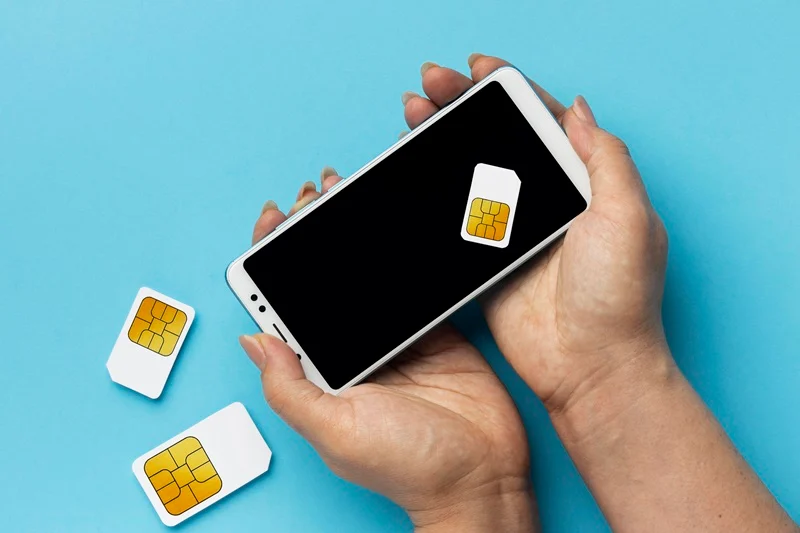
Remove the SIM card carefully and inspect the tray. Make sure it is not bent or damaged. Reinsert the SIM properly, ensuring it sits flat and secure. A loose SIM is one of the most overlooked causes of this issue.
Step-by-Step Fixes for SIM Card Issues
Once basic checks are done, you can move to deeper troubleshooting methods. These solutions target both software and hardware-related causes.
Cleaning and reseating the SIM card
Dust or oxidation on the SIM chip can block proper contact. Gently clean the gold contact area using a dry, soft cloth. Avoid using liquids. After cleaning, reinsert the SIM and check if the issue is resolved. Many users report instant improvement after this step.
Turning Airplane Mode on and off
Switching Airplane Mode resets your phone’s network radios. Turn it on for 20–30 seconds, then turn it off again. This forces the device to re-scan available networks and often restores SIM detection immediately.
Resetting network settings
Resetting network settings clears all saved Wi-Fi, Bluetooth, and mobile configurations. This is useful when incorrect settings are blocking SIM recognition. According to troubleshooting guides, this is one of the most effective software fixes for SIM-related errors.
Updating Android system software
Outdated system software can cause compatibility issues with carriers. Always check for updates in your settings menu. Installing the latest Android version ensures better modem stability and improved SIM handling.
Advanced Troubleshooting Methods
If basic fixes do not solve the problem, it’s time to test deeper possibilities. These methods help you determine whether the issue is with your SIM card, phone, or carrier.
Testing SIM in another phone
Insert your SIM card into another device. If it works there, your SIM is fine and the problem is your phone. If it doesn’t work, your SIM card is likely damaged and needs replacement from your carrier.
Changing network operator settings
Sometimes your phone is set to automatically select a network that doesn’t work correctly. Manually selecting your carrier can force a stable connection. This fix has helped many users regain signal when automatic selection fails.
Fixing APN configuration
APN (Access Point Name) settings control mobile data connections. Incorrect APN settings can prevent SIM functionality. Resetting APN to default usually restores proper connectivity.
When Your SIM or Phone is Faulty
At this stage, you should determine whether the issue is physical damage.
Signs of a damaged SIM card
A damaged SIM often stops working across multiple devices. It may appear scratched, bent, or corroded. If replacement is needed, your mobile provider can issue a new SIM with the same number.
Signs of SIM slot hardware failure
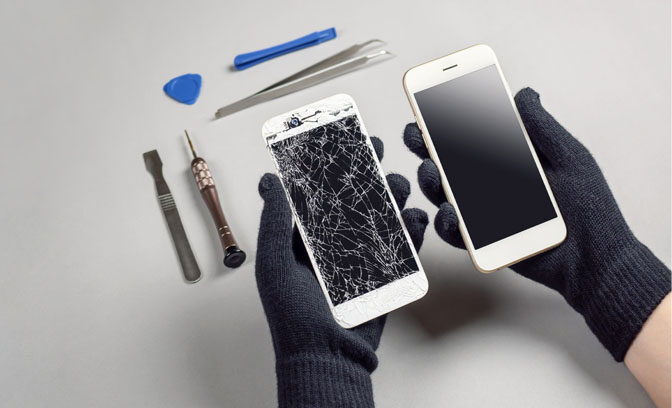
If your phone fails to detect any SIM card consistently, even after cleaning and resets, the SIM slot may be faulty. In this case, professional repair is usually required.
Prevention Tips for Future SIM Issues
Preventing SIM problems is easier than fixing them repeatedly. A few small habits can keep your phone running smoothly for years.
Proper SIM handling habits
Always handle SIM cards carefully. Avoid touching the gold chip and keep it away from moisture or dust. When switching SIMs, power off your phone first to reduce risk of damage.
Keeping software updated
Regular updates improve network compatibility and fix bugs that may affect SIM detection. Keeping your Android system updated reduces the chance of future issues significantly.
Conclusion
SIM card detection issues on Android may look serious, but most of them are caused by simple hardware misalignment or minor software glitches. With a structured troubleshooting approach—from restarting your phone to resetting network settings—you can usually restore connectivity without professional help. Only in rare cases does the SIM card or hardware actually need replacement
FAQs
1. Why does my phone suddenly say “No SIM card detected”?
It usually happens due to loose SIM placement, software glitches, or damaged SIM contacts.
2. Can a software update cause SIM issues?
Yes, some updates may temporarily disrupt network settings or carrier configuration.
3. How do I know if my SIM card is damaged?
If it doesn’t work in multiple phones, it is likely damaged and needs replacement.
4. Will resetting network settings delete my data?
No, but it will remove saved Wi-Fi passwords and Bluetooth connections.
5. Can I fix SIM issues without going to a repair shop?
Yes, most SIM detection problems can be fixed using basic troubleshooting steps.