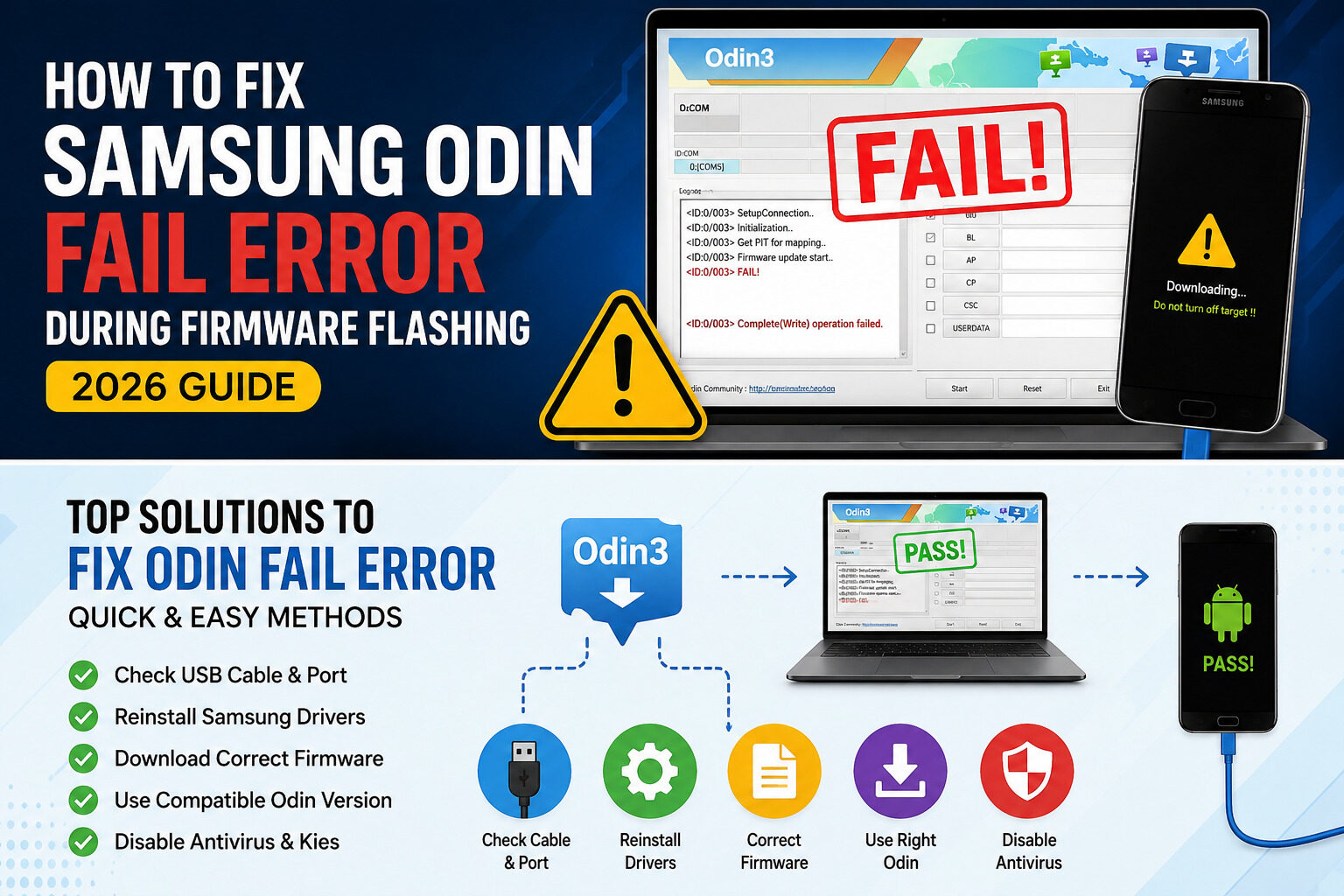
How to Fix Samsung Odin Fail Error – Samsung Odin remains one of the most widely used firmware flashing tools for Samsung Galaxy devices in 2026. Recent repair community discussions show that the most common Odin failures are linked to USB communication issues, corrupted firmware packages, bootloader mismatches, driver conflicts, VBMETA security errors, and flashing incompatible firmware versions. Repair technicians also report newer Samsung devices experiencing failures at super.img, hidden.img, and SetupConnection stages due to modern partition structures and security restrictions.
Understanding the Samsung Odin Fail Error
If you have ever flashed Samsung firmware, you probably know the feeling. Everything seems perfect. The firmware is loaded into Odin, the phone enters Download Mode, and the flashing process begins. Then suddenly a bright red FAIL message appears. Your heart skips a beat, and you immediately start wondering whether your phone is permanently damaged.
The good news is that most Odin Fail errors are completely fixable. In fact, experienced Samsung technicians encounter these issues almost daily. Odin is designed to communicate directly with Samsung devices in Download Mode and transfer firmware files to different system partitions. When something interrupts this communication process, Odin displays a failure message instead of the familiar green PASS notification.
Think of Odin as a delivery truck carrying important packages to your phone. If the road is blocked, the package is damaged, or the destination address is incorrect, the delivery fails. The same principle applies to firmware flashing. The problem usually comes from the connection, firmware package, security restrictions, or hardware communication. Once you identify the cause, the solution becomes much easier.
What Odin Actually Does
Samsung Odin is a specialized firmware flashing utility used to install stock firmware, recover soft-bricked devices, update software manually, and restore damaged system partitions. Unlike ordinary file transfers, Odin writes directly to critical Android partitions.
Why Odin Shows FAIL Instead of PASS
A FAIL message appears when Odin cannot complete a write operation successfully. This could happen because of corrupted firmware files, unstable USB communication, incompatible binaries, or Samsung security checks that prevent unauthorized flashing. Recent reports also show that modern Samsung devices have stricter partition verification systems compared to older Galaxy phones.
Most Common Odin Fail Messages

Samsung Odin can display several different error messages. Understanding the exact message helps narrow down the real cause.
SetupConnection Error
This is one of the most common failures reported by Samsung users. The flashing process gets stuck at SetupConnection and refuses to continue. Repair technicians often trace this problem to USB cables, ports, drivers, or software conflicts. Community troubleshooting discussions consistently point toward changing cables, reinstalling drivers, switching USB ports, and trying another Odin version.
Complete(Write) Operation Failed
This error occurs when Odin cannot write firmware data to the device. Corrupted firmware packages, permission problems, outdated Odin versions, and driver issues are among the most frequently reported causes.
Hidden.img Fail
Many Samsung devices fail near the end of the flashing process because of hidden.img errors. This usually happens around 80–95% completion, making it especially frustrating because the process appears almost finished. Repair communities have documented several successful recovery methods involving extraction and separate flashing of hidden.img.
VBMETA Security Error
Modern Samsung devices include advanced boot verification systems. When firmware files fail verification checks, users may encounter Secure Check Fail or VBMETA-related errors. These security protections are especially common on newer Android versions and Knox-protected devices.
Why Samsung Odin Fails in 2026
The Samsung ecosystem has evolved significantly. Newer devices use more complex partition systems, stronger security measures, and stricter firmware validation.
Driver Problems
Samsung USB drivers act as translators between Windows and your phone. Without proper drivers, Odin cannot establish a reliable connection. Many flashing failures happen simply because Windows installed generic drivers instead of Samsung-specific drivers. Community repair reports continue to identify missing or outdated drivers as a leading cause of Odin failures.
USB Connection Issues
A poor USB connection can interrupt data transfer during flashing. Cheap cables, damaged connectors, unstable ports, and USB hubs often cause unexpected failures. Even a brief interruption can stop Odin completely. Many technicians recommend using original Samsung cables whenever possible.
Firmware Mismatch
Installing the wrong firmware is like trying to fit a square peg into a round hole. Samsung firmware must match the exact model number and binary version of the device. Attempting to flash incompatible firmware frequently results in FAIL messages and security verification errors.
Bootloader Restrictions
Samsung continues strengthening security through Knox and bootloader verification systems. Some devices prevent flashing older firmware versions or modified images. If the firmware binary is lower than the installed bootloader version, Odin will typically reject the installation.
Essential Checks Before Flashing
Successful flashing starts long before you press the Start button.
Verify Device Model Number
Always confirm the exact model number from the phone label, recovery mode, or download mode screen. A Galaxy A14 SM-A145F is not identical to other A14 variants. Flashing incorrect firmware can cause immediate failure.
Check Binary Version
Samsung firmware includes binary versions identified by bootloader numbers. Downgrading below the current binary is usually impossible. Check the firmware build carefully before downloading.
Download Correct Firmware
Only use firmware designed for your exact device variant. Carrier-specific models often require carrier-specific firmware packages. Mismatched firmware remains one of the leading causes of Odin FAIL errors in repair forums.
Step-by-Step Fixes for Odin Fail Error
Now let’s move into practical solutions.
Reinstall Samsung USB Drivers
The first thing every technician does is reinstall drivers. Remove old Samsung drivers completely, restart Windows, and install the latest version again. Driver corruption is surprisingly common after Windows updates.
This simple step solves countless SetupConnection and Write Operation Failed errors. If Odin suddenly stopped working after previously functioning correctly, driver conflicts are often responsible.
Use a Different USB Port
Front-panel USB ports frequently cause flashing issues. Connect directly to a motherboard USB port whenever possible. Avoid USB hubs and extension cables.
Many users report successful flashing immediately after changing ports or switching computers entirely. While it sounds simple, this solution consistently appears in technician recommendations.
Change Odin Version
Not all Odin versions behave the same way. Some firmware packages work better with newer releases, while certain older devices prefer legacy versions.
When Odin repeatedly fails, testing another version can sometimes resolve compatibility issues instantly. Technicians regularly keep multiple Odin versions available for troubleshooting.
Disable Samsung Kies
Samsung Kies can interfere with Odin because both programs attempt to communicate with the same device simultaneously.
Close Kies completely, including background processes. Many flashing failures disappear once all Samsung management software is terminated before launching Odin.
Advanced Solutions
Some failures require more advanced repair techniques.
Fix Hidden.img Fail
The hidden.img error typically appears near the end of flashing. Experienced users often solve it by extracting hidden.img from the firmware package, converting it into a tar archive, and flashing it separately through Odin. Multiple repair community reports confirm this method has successfully recovered soft-bricked Samsung devices.
This method should only be attempted if you understand Samsung partition flashing procedures. Always keep a full firmware package available as a backup.
Fix Super.img Fail
New Samsung devices increasingly use dynamic partitions stored within super.img. Recent technician reports indicate failures can occur because of partition compatibility issues, firmware mismatches, or carrier restrictions. Ensuring firmware compatibility and using updated flashing procedures significantly improves success rates.
Fix Secure Check Fail VBMETA
VBMETA errors are closely tied to Android Verified Boot security. These failures usually indicate that the firmware, boot image, or modified partition failed verification checks.
Modern Samsung devices are extremely strict regarding boot integrity. Always use firmware specifically designed for your device model and binary version. Attempting unsupported modifications often triggers VBMETA failures.
How to Prevent Odin Fail Errors
The best repair is the one you never need to perform. Professional technicians reduce failure rates by following a consistent preparation routine before every flash.
| Preventive Action | Why It Matters |
|---|---|
| Use original Samsung cable | Improves data stability |
| Install latest Samsung drivers | Prevents connection issues |
| Verify firmware model number | Avoids incompatibility |
| Check binary version | Prevents downgrade errors |
| Disable Kies and antivirus | Reduces software conflicts |
| Use reliable USB ports | Prevents disconnections |
| Keep battery above 50% | Avoids shutdown during flashing |
Treat firmware flashing like performing surgery. Preparation matters just as much as the actual procedure. Most failures occur because a small detail was overlooked before the flash began.
Conclusion
Samsung Odin remains one of the most powerful tools for repairing, updating, and restoring Galaxy devices in 2026. Although the red FAIL message can look alarming, it rarely means the device is permanently damaged. Most issues originate from USB communication problems, driver conflicts, incorrect firmware, security restrictions, or partition verification failures.
The fastest path to success usually starts with verifying the firmware, reinstalling Samsung drivers, switching USB ports, and testing another Odin version. For more advanced failures such as hidden.img, super.img, and VBMETA errors, understanding Samsung’s modern partition structure becomes increasingly important.
When approached methodically, even stubborn Odin Fail errors can often be resolved without professional repair equipment. Patience, preparation, and careful verification remain the most valuable tools in every Samsung technician’s toolbox.
FAQs
1. Why does Odin get stuck at SetupConnection?
SetupConnection failures are usually caused by faulty USB cables, damaged USB ports, outdated drivers, or software conflicts. Changing the cable, port, or PC often solves the issue.
2. Can the wrong firmware cause Odin FAIL?
Yes. Installing firmware intended for a different model number or binary version is one of the most common reasons Odin fails during flashing.
3. Is Odin safe to use?
Odin is widely used for Samsung firmware installation. However, flashing incorrect files can soft-brick a device, so firmware verification is essential.
4. What causes Hidden.img Fail?
Hidden.img failures usually occur because Odin cannot properly write the hidden partition. Firmware extraction and separate flashing methods have helped many users recover successfully.
5. How do I fix Secure Check Fail VBMETA?
Use firmware that exactly matches your model and binary version. VBMETA errors are commonly related to boot verification and Samsung security protections.