What Are Samsung Flashing Tools?
Samsung flashing tools are software programs used to install, update, restore, or repair firmware on Samsung Galaxy phones and tablets. Think of firmware as the phone’s operating foundation. If Android is the house you live in, firmware is the concrete, wiring, and plumbing under the floor. When that foundation becomes damaged, outdated, or corrupted, the device may freeze on the Samsung logo, restart repeatedly, fail updates, or behave strangely after a failed software modification.
For technicians, flashing tools are essential because many Samsung software issues cannot be fixed by simply clearing cache or doing a factory reset. A phone stuck in a boot loop may need fresh stock firmware. A device that failed during an update may need recovery through official software. A phone with the wrong regional software may need the correct firmware package for its model and CSC. However, flashing is not something to treat casually. The wrong firmware file can brick a phone, wipe data, or trigger security restrictions.
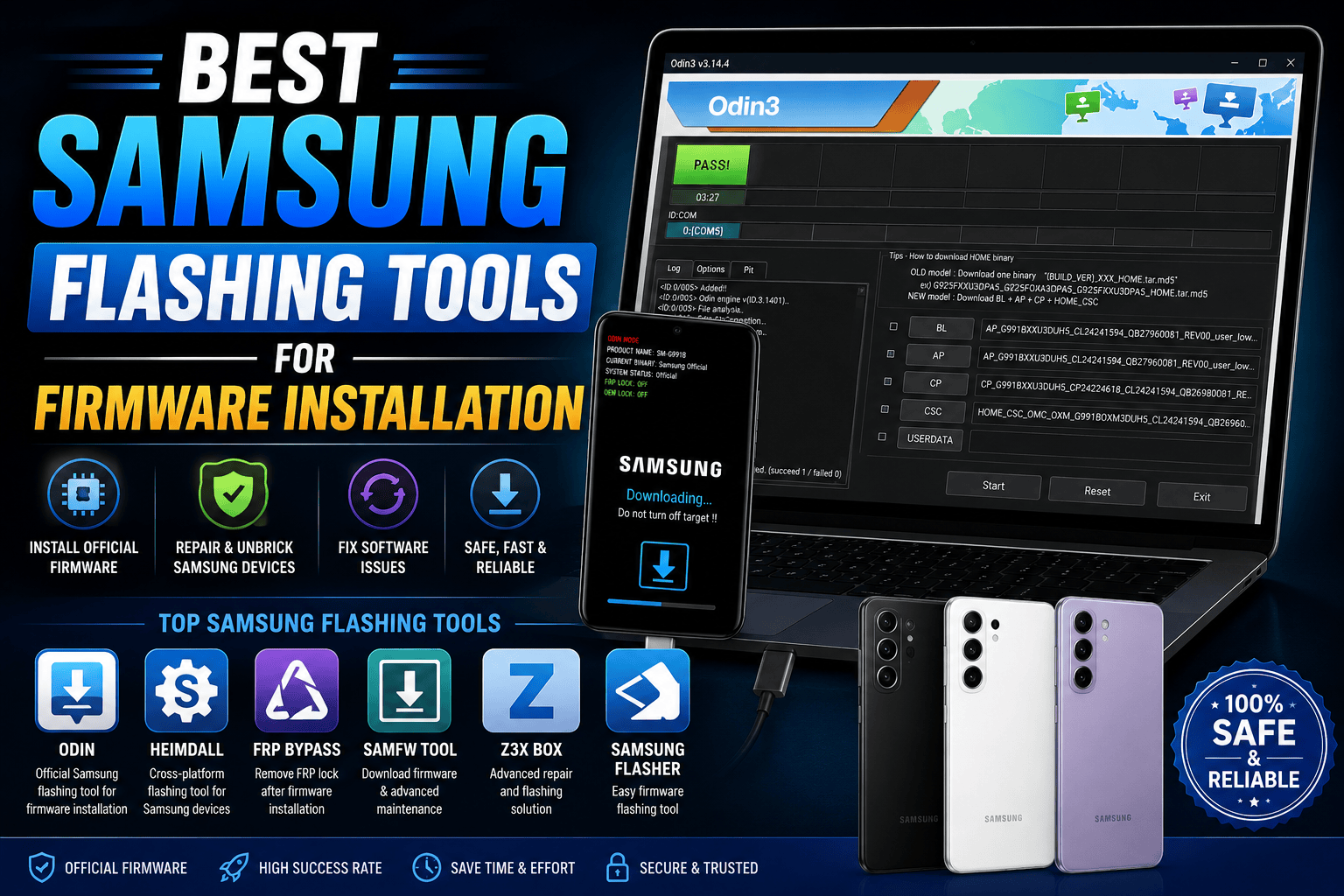
The best Samsung flashing tools for firmware installation include Odin, Samsung Smart Switch, Frija, SamFW Tool, Heimdall, and Samsung USB Drivers. Some tools flash firmware directly, while others help download firmware or make the computer recognize the phone properly. A good technician does not use one tool for every job. Instead, they choose the right tool based on the phone’s condition, model number, firmware type, and repair goal.
Why Firmware Installation Matters
Firmware installation matters because it can bring a Samsung device back to life when normal troubleshooting fails. Many users think a slow or frozen phone always has a hardware problem, but software corruption is very common. A failed OTA update, interrupted flashing process, damaged system partition, or wrong custom ROM can make a perfectly healthy phone look completely dead. In these cases, installing the correct firmware is like reinstalling Windows on a computer that refuses to boot.
For mobile repair shops, firmware flashing can also save time and increase service quality. Instead of guessing, replacing parts, or keeping a phone for days, a technician can diagnose whether the issue is software-related. If the device enters Download Mode and the hardware is stable, a proper firmware installation may solve problems such as boot loops, app crashes, system errors, update failures, and soft bricks. This makes flashing knowledge valuable for anyone working with Samsung repair.
At the same time, firmware flashing must be done responsibly. It should not be used for illegal unlocking, bypassing stolen-device protections, or removing security features from phones that do not belong to the customer. Ethical repair work means flashing only when the customer owns the device and understands the risks. The goal is to restore the phone, not bypass ownership protection.
Important Warning Before Flashing Samsung Firmware
Before using any Samsung flashing tool, you must understand the risk. Flashing firmware can erase data, void warranty in some cases, fail if the battery dies, or damage the software if the wrong file is used. This is why professional technicians always check the exact model number first. A Samsung Galaxy A14, for example, can have different model variants depending on country and network. Flashing firmware for the wrong variant is one of the easiest ways to create a serious problem.
You should also confirm the CSC or region code when installing stock firmware. The CSC controls region settings, carrier features, update channels, and sometimes network behavior. If you flash firmware from the wrong region, the phone may still work, but certain features may not behave as expected. In some cases, network settings, VoLTE, language packs, or OTA updates may be affected. That is why firmware selection is not just about the phone name; it is about the exact model and region.
Backup, Battery, and Model Number Checks
Before flashing, back up everything important. Photos, WhatsApp chats, contacts, documents, and app data can disappear during firmware installation. Even when using HOME_CSC in Odin to try keeping data, there is still a risk. A technician should never promise that data is 100% safe during firmware repair. The honest answer is simple: backup first, flash second.
The battery should ideally be above 50%, and the USB cable should be stable. Do not use loose cables, damaged ports, or front USB ports on unstable desktop computers. Firmware flashing is like surgery; the process should not be interrupted halfway. If the connection drops while writing system files, the device may fail to boot and need another repair attempt.
Best Samsung Flashing Tools Compared
| Tool | Best Use | Platform | Skill Level | Main Benefit |
|---|---|---|---|---|
| Odin | Flashing Samsung stock firmware | Windows | Intermediate | Most common Samsung firmware flashing tool |
| Smart Switch | Official update and recovery | Windows/Mac | Beginner | Safer official Samsung option |
| Frija | Downloading Samsung firmware | Windows | Beginner/Intermediate | Fast firmware download from Samsung servers |
| SamFW Tool | Technician utility tasks | Windows | Intermediate | Helpful for repair workflow |
| Heimdall | Open-source flashing | Windows/Mac/Linux | Advanced | Cross-platform alternative |
| Samsung USB Drivers | Device connection | Windows | Beginner | Required for stable PC detection |
Odin Flash Tool

Odin Flash Tool is the most popular Samsung flashing tool for installing stock firmware. It is widely used by mobile technicians because it supports Samsung firmware packages with files such as BL, AP, CP, CSC, and HOME_CSC. These files represent different firmware partitions. BL usually relates to the bootloader, AP contains the main system image, CP handles modem/baseband files, and CSC controls region or carrier configuration.
Odin is powerful because it can repair many software problems that normal settings menus cannot fix. If a Samsung phone is stuck on the logo, failed an update, or needs a clean firmware installation, Odin is often the first tool technicians think about. It works through Download Mode, which is Samsung’s special firmware flashing mode. Once the device is connected correctly, Odin can write firmware files directly to the phone.
Best For Stock Firmware Installation
Odin is best for installing official Samsung stock firmware. It is not the best choice for beginners who do not understand firmware files, but it becomes very effective once you learn the basics. The most important rule is to match the firmware with the exact model number. For example, firmware for SM-A145F should not be flashed on a different model unless it is confirmed compatible.
Another important choice in Odin is CSC vs HOME_CSC. Using CSC usually performs a clean installation and wipes data. HOME_CSC is commonly used when trying to keep user data during an update or repair. However, keeping data is never guaranteed, especially if the system is already corrupted. If the phone has serious software problems, a clean flash may be more reliable.
Samsung Smart Switch
Samsung Smart Switch is Samsung’s official software for data transfer, software updates, and device recovery. It is one of the safest options for normal users because it comes from Samsung and does not require manually loading firmware files. For many people, Smart Switch is the best first step before trying advanced flashing tools. If the phone is supported and detected correctly, it can update the device software using a guided process.
Smart Switch is especially useful when a device update fails or when a user wants to install available official software from a computer. It is not as flexible as Odin, but that is also part of its strength. The tool reduces the chance of selecting the wrong firmware manually because it follows Samsung’s own update system. For beginners, this is a major advantage.
Best Official Tool for Updates and Recovery
Smart Switch is best for official updates, emergency software recovery, and simple firmware repair. If your Samsung phone still connects to the computer and Smart Switch recognizes it, this tool should be considered before using Odin. It is cleaner, safer, and easier for non-technicians. It is also useful for customers who are nervous about manual flashing.
However, Smart Switch does have limits. It may not support every firmware repair situation, and it may fail to detect devices with serious software damage. It also does not give technicians the same level of manual control as Odin. For simple recovery, it is excellent. For advanced repair jobs, Odin or Heimdall may still be necessary.
Frija Tool

Frija is not mainly a flashing tool; it is a Samsung firmware downloader. This makes it extremely useful because flashing is only as good as the firmware file you use. If you download the wrong file from an unsafe website, you risk wasting time or damaging the software. Frija helps users find and download Samsung firmware based on model number and CSC.
A common workflow is simple: use Frija to download the correct firmware, extract the files, then use Odin to flash them. This combination is popular among technicians because it gives both speed and control. Frija can download firmware directly from Samsung firmware servers, which makes it more trustworthy than random firmware links shared on unknown websites.
Best for Downloading Samsung Firmware
Frija is best for technicians who frequently need firmware for different Samsung models. Instead of searching through dozens of pages, you enter the model and CSC, then let the tool check available firmware. This saves time and reduces errors. It is also helpful when repairing customer phones from different regions because you can search firmware by specific country or carrier code.
The key is accuracy. If you enter the wrong model or CSC, you may download firmware that is not right for the phone. Always check the model number from Download Mode, Settings, recovery screen, or the phone label if available. Never rely only on the commercial phone name, because Samsung often sells several variants under the same marketing name.
SamFW Tool

SamFW Tool is a popular utility among Samsung technicians because it includes several repair-related functions. Many users know it for firmware and device service tasks, but it should be used carefully and ethically. Like any technician tool, it can be helpful in the right hands and risky in the wrong hands. The safe use case is legitimate repair, diagnosis, and support for devices owned by the customer.
For firmware installation workflows, SamFW Tool can be useful alongside Odin and firmware download tools. Technicians often keep several utilities ready because not every Samsung device behaves the same way. One phone may connect perfectly with Odin, while another may need driver troubleshooting first. A repair shop needs flexibility, and SamFW Tool can be part of that toolbox.
Useful for Technicians
SamFW Tool is more suitable for intermediate users than complete beginners. If you are still learning Samsung repair, start with Smart Switch, Samsung USB Drivers, and Odin basics first. Once you understand firmware, CSC, Download Mode, and driver behavior, tools like SamFW become easier to use responsibly.
The most important rule is to avoid unsafe shortcuts. Do not use any tool to bypass ownership protection on unknown devices. A professional technician should ask for proof of ownership and explain what the repair will do. Good repair work protects both the customer and the technician.
Heimdall Flash Tool

Heimdall is an open-source Samsung flashing tool that works across different platforms, including Linux, macOS, and Windows. This makes it attractive for advanced users who do not want to depend only on Windows-based Odin. It communicates with Samsung devices using the Odin protocol, but the interface and workflow are different from Odin.
Heimdall is not usually the easiest choice for beginners. It may require more technical understanding, especially on Linux or macOS. However, it is valuable because it gives users an open-source alternative. Developers, Linux users, and advanced repair technicians may prefer it for certain workflows.
Best Open-Source Option
Heimdall is best for advanced users who understand firmware partitions and command-line or technical flashing procedures. It is not the first tool I would recommend to a beginner repairing a Samsung Galaxy phone for the first time. Odin and Smart Switch are easier starting points. But for technicians who work outside Windows, Heimdall can be a powerful option.
The same safety rules apply. Match the firmware correctly, check the model number, confirm the device mode, and avoid interrupting the process. Open-source does not mean risk-free. Flashing always requires careful preparation.
Samsung USB Drivers
Samsung USB Drivers are not flashing tools by themselves, but they are essential. Without proper drivers, Odin, Frija auto-detection, Smart Switch, and other utilities may fail to recognize the device. Many flashing errors start with a simple driver problem. The phone may enter Download Mode correctly, but the PC does not communicate with it properly.
Installing the correct Samsung USB drivers should be one of the first steps in any firmware repair setup. After installation, restart the computer and use a good USB cable. If the device still does not appear, try another USB port, preferably a direct motherboard port on a desktop PC. Avoid cheap charging-only cables because they may not transfer data.
Drivers are boring, but they matter. A technician who ignores drivers will waste hours blaming firmware files, Odin versions, or the phone itself. In many cases, the real problem is simply a bad cable or missing driver.
How to Choose the Right Samsung Flashing Tool
Choosing the right tool depends on the repair goal. If the customer only wants an official update and the phone is working normally, Samsung Smart Switch is the safest choice. If the phone is stuck in a boot loop or needs manual firmware installation, Odin is usually the better option. If you need to download firmware first, Frija is a strong choice. If you work on Linux or macOS and want an open-source route, Heimdall may be better.
You should also consider your skill level. Beginners should avoid jumping into advanced tools without understanding firmware files. A small mistake can turn a simple repair into a complicated job. Start with official tools, learn how Samsung model numbers work, practice on non-critical devices, and only then move into advanced flashing.
For mobile repair businesses, the best setup is not one tool but a complete workflow. Install Samsung USB Drivers, use Frija or another trusted method to get firmware, flash with Odin when needed, and keep Smart Switch available for official recovery. This gives you a balanced repair system that is practical, safe, and professional.
Common Firmware Flashing Mistakes
One of the most common mistakes is flashing firmware for the wrong model. Samsung model numbers can look similar, but they are not always compatible. Another mistake is using firmware with a lower bootloader version. Samsung devices often block bootloader downgrades, so trying to flash older firmware may fail in Odin. If you see errors related to binary version or bootloader revision, this may be the reason.
Another common mistake is disconnecting the cable too early. Some users panic when the phone restarts or Odin appears to pause. Flashing can take time, especially with large AP files. Disconnecting during the process can corrupt the installation. Unless the tool clearly fails, wait patiently and let the process finish.
People also forget to back up data. This creates angry customers and stressful repair situations. Before any firmware job, explain that data loss is possible. If the phone still boots, back it up. If it does not boot, be honest about the limits. A professional repair service is built on trust, not unrealistic promises.
Safe Samsung Firmware Installation Tips
Always start by checking the exact model number. You can often find it in Settings, Download Mode, recovery mode, the SIM tray area, or the back label depending on the device. Then check the CSC or region if you need matching firmware. Download firmware only from trusted sources or tools that pull from Samsung servers. Avoid suspicious websites with fake download buttons, password-protected archives, or unknown executable files.
Use a reliable Windows PC for Odin flashing. Close unnecessary programs before starting. Disable anything that may interrupt the USB connection, and do not let the computer sleep during flashing. Keep the phone charged and use a proper data cable. These basic steps sound simple, but they prevent many failed flashes.
After flashing, the first boot can take longer than normal. Do not assume the phone is stuck immediately. Give it time. If it remains on the logo for too long after a clean flash, boot into recovery and wipe cache or perform a factory reset if appropriate. If the problem continues after correct firmware installation, the issue may be hardware-related, such as faulty storage, battery instability, or board damage.
Conclusion
The best Samsung flashing tools for firmware installation are not all used for the same purpose. Odin is the most popular tool for flashing stock Samsung firmware manually. Samsung Smart Switch is the safest official option for updates and recovery. Frija is excellent for downloading the correct firmware. SamFW Tool can help technicians with repair workflows. Heimdall is a strong open-source alternative for advanced users, especially outside Windows. Samsung USB Drivers make everything work smoothly by helping the PC detect the device.
If you are a beginner, start with Smart Switch and learn the basics before using Odin. If you are a technician, build a safe workflow around model checking, trusted firmware downloads, backups, and stable USB connections. Flashing can repair many Samsung software problems, but it demands patience and accuracy. Treat every phone like important customer property, and you will avoid most firmware repair disasters.
FAQs
1. What is the best Samsung flashing tool?
The best Samsung flashing tool for most technicians is Odin because it supports manual installation of Samsung stock firmware. However, beginners may prefer Samsung Smart Switch because it is official and easier to use.
2. Can I flash Samsung firmware without losing data?
Sometimes you can try using HOME_CSC in Odin to keep data, but data safety is never guaranteed. Always back up important files before flashing firmware.
3. Is Odin an official Samsung tool?
Odin is widely used for Samsung firmware flashing, but Samsung does not usually promote it as a public consumer tool. For normal users, Samsung Smart Switch is the safer official option.
4. What tool can download Samsung firmware?
Frija is one of the most popular tools for downloading Samsung stock firmware. You need the correct model number and CSC to download the right package.
5. Why does Odin fail when flashing firmware?
Odin may fail because of wrong firmware, wrong model number, low bootloader version, bad USB cable, missing drivers, or interrupted connection. Always check the model, install Samsung USB Drivers, and use a stable cable.