A smartphone that refuses to power on can feel like a locked door between you and your digital life. Whether you use your device for work, communication, banking, or entertainment, a dead phone can quickly become frustrating. The good news is that a smartphone that won’t turn on is not always permanently damaged. In many cases, the problem is caused by a drained battery, a faulty charger, software crashes, or a temporary system malfunction that can be fixed at home.
Recent smartphone support recommendations from major manufacturers show that charging issues, dirty charging ports, damaged cables, and software glitches remain among the most common reasons devices fail to power on. Before assuming your phone needs a motherboard replacement, it’s worth following a systematic troubleshooting process.
Understanding Why Smartphones Stop Powering On

Modern smartphones are sophisticated computers packed into slim devices. When they fail to turn on, the root cause usually falls into one of two categories: hardware failure or software malfunction. Hardware issues include battery defects, damaged charging ports, failed power buttons, broken display assemblies, or motherboard faults. Software-related problems often involve system crashes, corrupted updates, boot loops, or firmware corruption.
Imagine your smartphone as a car. A car may refuse to start because the battery is dead, the fuel system is failing, or the engine control module is malfunctioning. Smartphones behave similarly. The power system, charging circuitry, battery, and operating system must all work together. If even one component fails, the device may appear completely dead.
Common Smartphone Motherboard Issues Explained (Repair Guide 2026)
The encouraging part is that many power-on problems originate from components that are relatively easy to diagnose. Recent troubleshooting guides from manufacturers emphasize checking charging accessories, cleaning ports, and performing forced restarts before considering expensive repairs.
First Things to Check Before Panicking
Before reaching for a screwdriver or searching for replacement parts, take a few minutes to inspect the phone carefully. Look for obvious signs of damage. Cracks, bent frames, water exposure indicators, or burn marks can provide important clues about the cause of the problem.
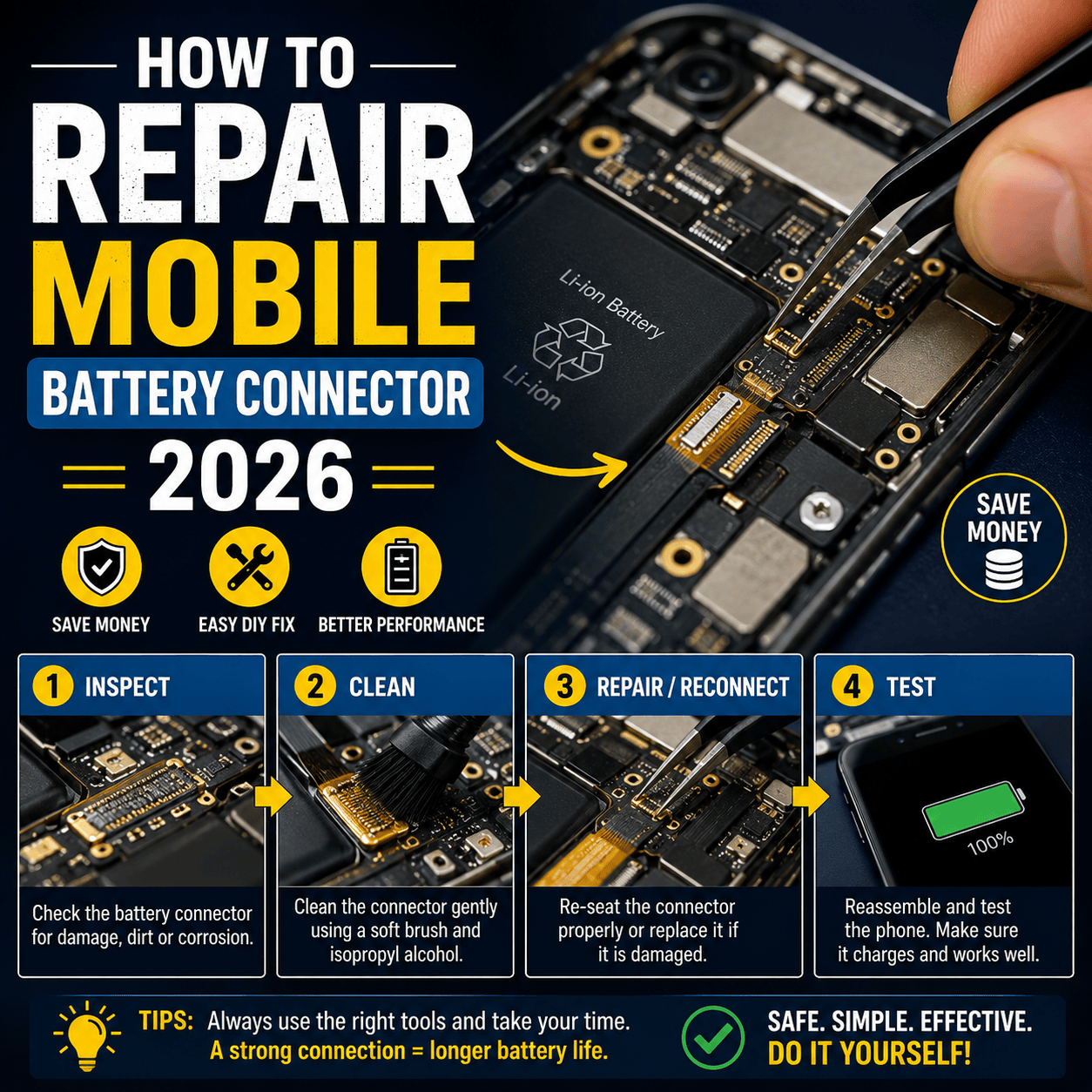
If the device was recently dropped, internal connectors may have become loose. A phone can sometimes remain physically intact while suffering hidden damage to the battery connector or display cable. Likewise, exposure to moisture can trigger safety systems that prevent charging and startup.
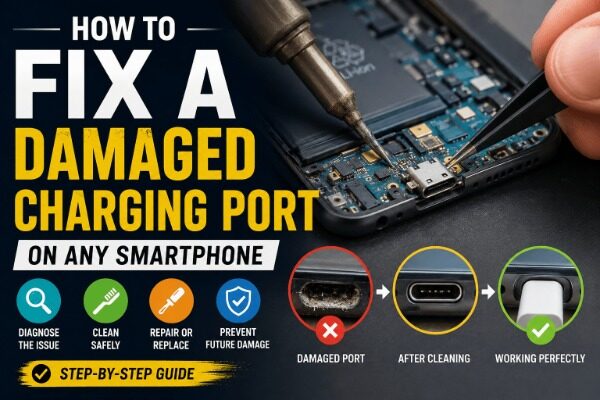
Pay close attention to the charging port. Corrosion, dirt, lint, and debris frequently prevent proper charging. Even a small amount of pocket lint can block the charging cable from making full contact with the internal pins. Several repair guides identify dirty charging ports as one of the leading causes of power and charging failures.
Verify the Battery and Charging System
The most common reason a smartphone won’t power on is a completely depleted battery. If the battery has discharged to an extremely low level, the phone may require 15 to 30 minutes of charging before displaying any signs of life.
Use the following checklist:
| Component | What to Check |
|---|---|
| Charging Cable | Frayed wires, bent connectors |
| Charger Adapter | Proper voltage and output |
| Wall Outlet | Working electrical connection |
| Power Bank | Adequate charge available |
| USB Port | Secure connection |
Try a known working cable and adapter. If possible, use the original charger supplied by the manufacturer. Faulty chargers are responsible for many charging failures. Testing with different accessories helps eliminate guesswork and quickly identifies whether the issue is external or internal.
Leave the phone connected to power for at least 30 minutes before attempting to turn it on again. Some devices require additional charging time when the battery has been deeply discharged.
Clean the Charging Port Safely
A dirty charging port can completely prevent a smartphone from receiving power. Over months or years, dust and lint accumulate inside the USB-C or Lightning connector. This buildup prevents charging cables from seating correctly.
Power off the phone before cleaning. Use a soft brush, compressed air, or a wooden toothpick to gently remove debris. Avoid using metal objects because they can damage internal contacts or cause electrical shorts. Professional technicians frequently discover that a simple port cleaning restores normal charging functionality.
After cleaning, reconnect the charger and allow the device to charge for several minutes. If the battery icon appears, you’ve likely solved the problem without needing repairs.
Perform a Forced Restart
Sometimes the phone is actually powered on but frozen. In this situation, the screen remains black and unresponsive even though the internal system is still running.
Samsung Devices
Press and hold the Power Button + Volume Down button simultaneously for at least 7 seconds. Samsung specifically recommends this method to restart frozen Galaxy devices.
Most Android Phones
Press and hold the Power button for 15 to 30 seconds. Some manufacturers require Power + Volume Down.
iPhone Models
Quickly press Volume Up, then Volume Down, and hold the Side Button until the Apple logo appears.
Forced restarts resolve many temporary software crashes and can often bring seemingly dead devices back to life.
Identifying Display Problems
Many users assume their phone is dead when the real problem is the display. A damaged screen may remain black while the phone itself continues operating normally.
Listen carefully for vibrations, charging sounds, notifications, or incoming calls. If these signs are present, the motherboard is likely functioning. Shine a flashlight across the display at an angle to check for faint images. This can indicate a failed backlight rather than a dead device.
Display failures often occur after drops, water exposure, or manufacturing defects. Replacing the screen assembly is usually far less expensive than replacing the entire phone.
Boot Into Recovery Mode
Recovery Mode is a special troubleshooting environment built into Android devices. It allows users to clear cache partitions, repair startup problems, and perform factory resets when necessary.
General Android steps include:
- Power off the phone.
- Hold Power + Volume Up.
- Wait for the recovery menu.
- Navigate using volume keys.
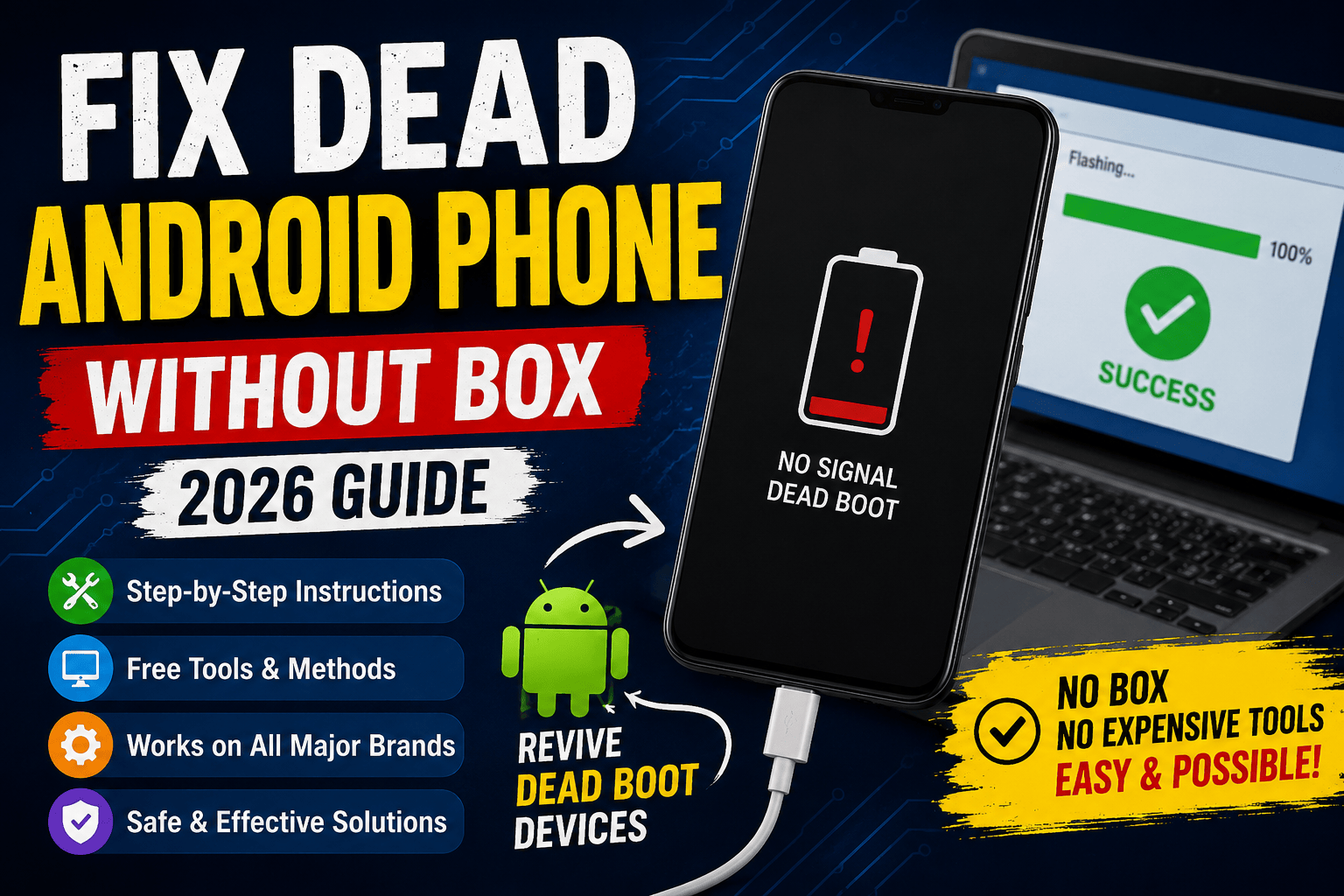
If the phone successfully enters Recovery Mode, the motherboard and processor are likely functioning correctly. This strongly suggests a software issue rather than a hardware failure.
Factory resets should be considered only as a last resort because they erase user data.
Signs of Battery Failure
Smartphone batteries naturally degrade over time. After hundreds of charging cycles, battery capacity decreases and internal resistance increases. Eventually, the battery may fail to hold enough power to boot the device.
Common warning signs include:
- Rapid battery drain
- Random shutdowns
- Excessive overheating
- Charging stuck at certain percentages
- Physical swelling
A swollen battery is particularly dangerous. Experts recommend powering off the device immediately and seeking professional service if battery swelling is visible. Continuing to use a swollen battery can increase fire risk.
Motherboard and Power IC Problems
When charging accessories, batteries, software, and displays have all been ruled out, attention turns to the motherboard. The Power Management IC (PMIC) controls voltage distribution throughout the phone. Damage to this component can prevent startup completely.
Motherboard faults commonly occur after:
- Water damage
- Electrical surges
- Incorrect repair attempts
- Severe drops
- Charging with damaged accessories
Diagnosing motherboard issues requires specialized tools such as multimeters, DC power supplies, thermal cameras, and board-level repair equipment. For most users, professional repair is the best option at this stage.
When Professional Repair Is Necessary
Seek professional help if:
- The phone overheats during charging.
- The charging port is physically damaged.
- The battery is swollen.
- Water damage is suspected.
- The phone remains completely unresponsive after troubleshooting.
- There is visible motherboard corrosion.
Experienced technicians can perform advanced diagnostics and identify failing components that are impossible to detect without specialized equipment.
Preventing Future Power Problems
Good maintenance habits significantly reduce the risk of future power failures. Use quality chargers, avoid extreme temperatures, keep charging ports clean, and install software updates regularly. Battery experts also recommend avoiding frequent deep discharges and minimizing excessive heat during charging.
Think of battery maintenance like vehicle maintenance. Small preventive actions today can prevent major failures tomorrow.
Conclusion
A smartphone that won’t power on doesn’t always require an expensive repair. In many situations, the problem is caused by a depleted battery, damaged charger, dirty charging port, or temporary software crash. By following a structured troubleshooting process, you can identify the root cause and often restore the device yourself.
If the phone still refuses to start after testing chargers, cleaning the port, performing forced restarts, and checking for battery issues, professional diagnostics may be required. The key is to move methodically through each step instead of assuming the worst from the beginning.
Frequently Asked Questions
1. How long should I charge a dead phone before turning it on?
Allow at least 15 to 30 minutes of charging before attempting to power on a completely drained device.
2. Can a dirty charging port stop a phone from turning on?
Yes. Dirt, lint, and debris can prevent the charger from making proper contact.
3. What causes smartphone batteries to swell?
Overheating, physical damage, charging issues, and internal battery degradation are common causes.
4. Can a software update make my phone stop turning on?
In rare cases, corrupted updates can cause boot failures or startup loops.
5. Should I replace the battery or buy a new phone?
If the phone is otherwise functional, replacing the battery is often far more cost-effective than replacing the entire device.