How to Troubleshoot Common Smartphone Problems

In today’s connected world, your smartphone is more than just a cell phone; it’s your center for communication, work, entertainment, and memory. Frustration is immense when a problem arises: the phone won’t turn on, the battery drains too quickly, the screen cracks, or the camera doesn’t work. These malfunctions may seem daunting, but the truth is that many smartphone problems have solutions.
This comprehensive guide from mobilefixpro.co.za was created to be your ultimate resource for troubleshooting smartphone problems. We’ll help you diagnose what’s wrong, try solutions you can apply at home, and crucially, know when it’s the right time to seek the expertise of a professional.
1. Essential First Steps in Problem Solving (Do It Yourself)
Before panicking or thinking about spending money on a repair, there are a number of simple steps you can and should try. Many cell phone problems are solved with these basic actions:
The “Magic Reboot”: Restarting the Device
It’s the oldest and, surprisingly, the most effective solution for a multitude of software glitches, slowdowns, or frozen applications. A simple restart clears RAM, terminates background processes, and can resolve minor system bugs.
- For iPhones (recent models): Press and release Volume Up, then Volume Down, and hold the side button until you see the Apple logo.
- For Android (most models): Press and hold the Power button for about 10-20 seconds.
Check for and install software updates.
System updates (iOS or Android) don’t just bring new features; they’re vital to the health of your smartphone. They include bug fixes, performance improvements, and security patches. An outdated system can lead to slow performance, app crashes, and battery problems.
- Go to Settings > General > Software Update (iPhone) or Settings > About Phone > Software Update (Android).
- Make sure all your apps are also updated through the App Store or Google Play Store.
Basic Device Cleaning
Dirt is a silent enemy of your smartphone, affecting connectivity and functionality.
- Charging/Audio Ports: Dust and lint can clog the ports, preventing charging or connecting accessories. Use a wooden toothpick (never metal!) or compressed air to gently clean them.
- Speakers and Microphones: Residue can muffle the sound or make it difficult to hear your voice on calls. Use a soft, dry brush to clean the grill grates.
- Camera lenses: Fingerprints, dust, or dirt on the lens can cause blurry photos. Clean carefully with a microfiber cloth.
Check Accessories and Connections
Sometimes the problem isn’t with the phone itself, but with its accessories.
- Chargers and Cables: A damaged cable or a broken adapter is a common cause for a cell phone not charging or connecting. Try a different set.
- Headphones/Earphones: If there is no sound coming from the phone’s speaker, make sure it is not connected to wired or Bluetooth headphones (disable Bluetooth to test).
2. Hardware vs. Software Problems: How to Distinguish?
Understanding the difference between a hardware and a software failure is the first step towards effective smartphone troubleshooting:
Typical Symptoms of Hardware Problems (Physical Components)
- Visible Physical Damage: Broken screen, shattered camera lens, bent charging port, stuck or loose buttons.
- Consistent and Reproducible Behavior: The problem always occurs under the same conditions, regardless of the app or task (e.g., the screen does not respond in a specific area, the battery drains in X hours with any usage).
- Physical signs: Swollen battery (raised back), phone overheats excessively without intensive use, burnt smell.
- Total Component Failure: Camera won’t open, speaker doesn’t emit sound, microphone doesn’t work, Wi-Fi won’t turn on.
- Liquid Damage: Exposure to water or other liquids often causes hardware problems, which may manifest immediately or over time.
Typical Symptoms of Software Problems (Operating System, Applications)
- Specific Application Failures: An app freezes or closes on its own repeatedly.
- Intermittent Slowness: The phone becomes slow only in certain situations or after opening several apps.
- Post-Update Bugs: Problems arise soon after an operating system update (e.g., battery draining faster).
- Random Behavior: The phone restarts on its own for no apparent reason, or displays “ghost touches” on the screen without visible damage.
- Software Conflicts: A newly installed app causes problems with other functionalities.
When a Professional Diagnosis is Essential
If your attempts to troubleshoot your smartphone at home don’t resolve the issue, or if you suspect a hardware problem, a professional diagnosis is the crucial next step. Attempting to repair hardware without the proper tools and knowledge can worsen the damage and even void warranties.
3. Detailed Guides to Common Problems (Our Essential Resources)
For more in-depth troubleshooting of the most common cell phone problems
- Cell Phone Won’t Turn On? Quick Troubleshooting Guide: Explore the steps to restart, check the battery, and inspect ports when your device refuses to turn on.
- Broken Cell Phone Screen: Can I Wait?: Understand the risks of delaying the repair of a cracked screen, even if it still works.
- Slow Cell Phone and Weak Battery? Optimize It!: Discover tips to improve battery performance and lifespan, and when it’s time for a replacement.
- Cell Phone Camera: Problems? Focus and Glitches: Diagnose problems such as blurry photos, camera app glitches, or if your camera doesn’t work at all.
- Smartphone with No Sound? Guide to Audio Problems: Solve issues such as no sound, muffled speaker, or microphone problems on your mobile phone.
4. Frequently Asked Questions (FAQs) about Smartphone Troubleshooting
To further assist you in troubleshooting your smartphone , here are some common questions and our answers:
My cell phone came into contact with water. What should I do?
If your cell phone has come into contact with water, turn it off immediately and do not attempt to turn it on or charge it. Remove the SIM card and any memory card tray. Contact us as soon as possible for professional liquid damage repair , as time is critical to minimizing damage.
My phone screen isn’t responding to touch, but it’s not cracked. What could be the problem?
A screen that doesn’t respond to touch, even without visible damage, may indicate a problem with the scanner or the screen’s internal connection. A complete screen repair may be necessary.
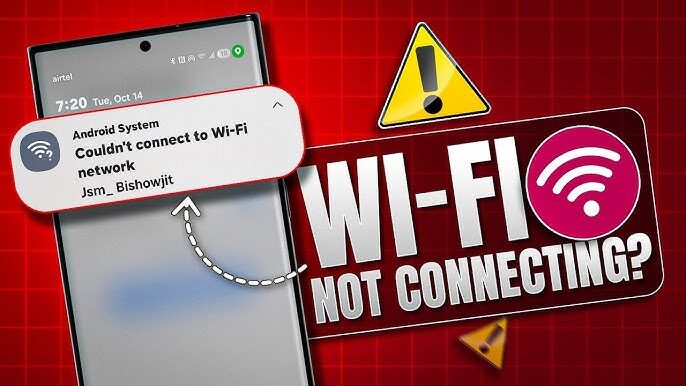
My Wi-Fi or Bluetooth is having connection problems. Can you fix it?
Yes. Wi-Fi or Bluetooth connectivity problems can be caused by software or hardware failures (defective Wi-Fi/Bluetooth module). We offer Wi-Fi and Bluetooth repair to diagnose and resolve these issues.
The power button or volume buttons aren’t working. Is there a solution?
Absolutely. Problems with physical buttons are common due to wear and tear or impact. We can repair buttons to restore functionality.
People can’t hear me during calls, but I can hear them.
This is a classic sign of a problem with your cell phone’s microphone. Our team can diagnose and repair your microphone to restore the clarity of your voice.
My Face ID or Touch ID stopped working.
Issues with biometric sensors, such as Face ID or Touch ID, can be complex and require in-depth diagnosis. We offer Face ID repair for compatible mobile phones, as well as sensor repair for other sensor problems.
Conclusion: When is it Time to Call the Experts
While troubleshooting your smartphone at home can solve many issues, there’s a limit to what you can do without specialized tools and knowledge.
Advantages Professional Service:
- Accurate Diagnosis: We use state-of-the-art equipment to identify the exact cause of the problem, avoiding unnecessary repairs.
- Quality Parts: We use only premium quality parts, OEM-spec or the best compatible, to guarantee the longevity of your repair. Your warranty is our priority.
- Comprehensive Experience: We repair all types of devices and brands, including iPhone repair, Samsung repair, Xiaomi repair, Google Pixel repair, and more. We are also experts in tablet repair (such as iPads and Samsung tablets) and MacBook repair .