Understanding Dead Android Phones
Modern Android smartphones are powerful machines, but even the best devices can suddenly become unresponsive. One moment your phone is working perfectly, and the next it refuses to turn on, gets stuck on a black screen, or shows no signs of life at all. Many users immediately assume they need expensive repair equipment such as professional flashing boxes. Fortunately, that is not always the case. In many situations, you can fix a dead Android phone without a box using free tools, a computer, and the correct firmware files. Repair technicians around the world successfully recover dead phones every day using software-based methods and built-in emergency modes.
The term “dead phone” can describe several situations. Some phones are completely dead and show no charging indication. Others are soft-bricked after a failed update, incorrect firmware flash, or system corruption. Understanding the difference between hardware failure and software failure is critical before attempting any repair. According to mobile repair experts, many Android devices that appear dead are actually suffering from firmware corruption rather than physical motherboard damage.
In this comprehensive guide, you will learn how to diagnose, troubleshoot, and repair a dead Android phone without using costly repair boxes.
How to Fix Samsung Odin Fail Error During Firmware Flashing (2026 Guide)
Before attempting any repair, you need to understand what “dead” actually means in the smartphone repair industry. Many users assume their device is permanently damaged when it simply fails to boot into Android. A truly dead phone shows no charging symbol, no vibration, no logo, and no reaction when connected to a charger. However, a large percentage of supposedly dead devices are actually soft-bricked because of firmware corruption, interrupted software updates, malware infections, or failed rooting attempts. Repair technicians frequently recover these devices without replacing any hardware components.
Android devices rely on several software partitions to start correctly. If even one critical partition becomes corrupted, the phone may refuse to boot. Imagine your phone as a library where the librarian suddenly loses the catalog system. All the books still exist, but nobody knows where they belong. The same thing happens when firmware files become damaged. The hardware may remain perfectly functional, yet the device appears lifeless. Understanding this concept helps you avoid unnecessary hardware replacements and expensive repair services.
Soft Brick vs Hard Brick
A soft-bricked phone usually enters recovery mode, Fastboot mode, Download mode, or is detected by a computer. Hard-bricked phones may not show any display output but can still be detected through emergency download modes such as EDL on Qualcomm devices or BROM mode on MediaTek devices. These emergency interfaces often allow successful recovery without specialized repair boxes.
Common Causes of Dead Boot Issues

Common causes include:
- Failed firmware updates
- Flashing incorrect ROMs
- Rooting errors
- Malware attacks
- Power failures during flashing
- Battery issues
- Water damage
- Motherboard faults
Identifying the cause significantly increases your chances of a successful repair.
Signs That Your Phone Can Be Repaired
Many technicians follow a simple rule: if the computer can still detect the device, there is usually hope. A phone that enters Fastboot Mode, Recovery Mode, Download Mode, or Emergency Download Mode often has a software-related issue rather than catastrophic hardware failure. This distinction can save both time and money because software repairs are generally faster and less expensive.
When connecting the device to a PC, check whether Windows Device Manager recognizes the phone. Even if the screen remains black, detection often means the processor is still communicating with the computer. This is one of the strongest indicators that the device can be revived through firmware restoration. Repair professionals frequently use this method as the first stage of diagnosis.
Detecting Software Problems
Software-related symptoms include:
- Boot loops
- Stuck logo screens
- Recovery mode access
- Fastboot access
- Device detection on PC
Detecting Hardware Problems
Hardware-related symptoms include:
- Overheating motherboard
- Water damage
- Broken charging IC
- Short circuits
- Burnt components
If hardware damage is present, software flashing alone may not solve the issue.
Essential Tools Required
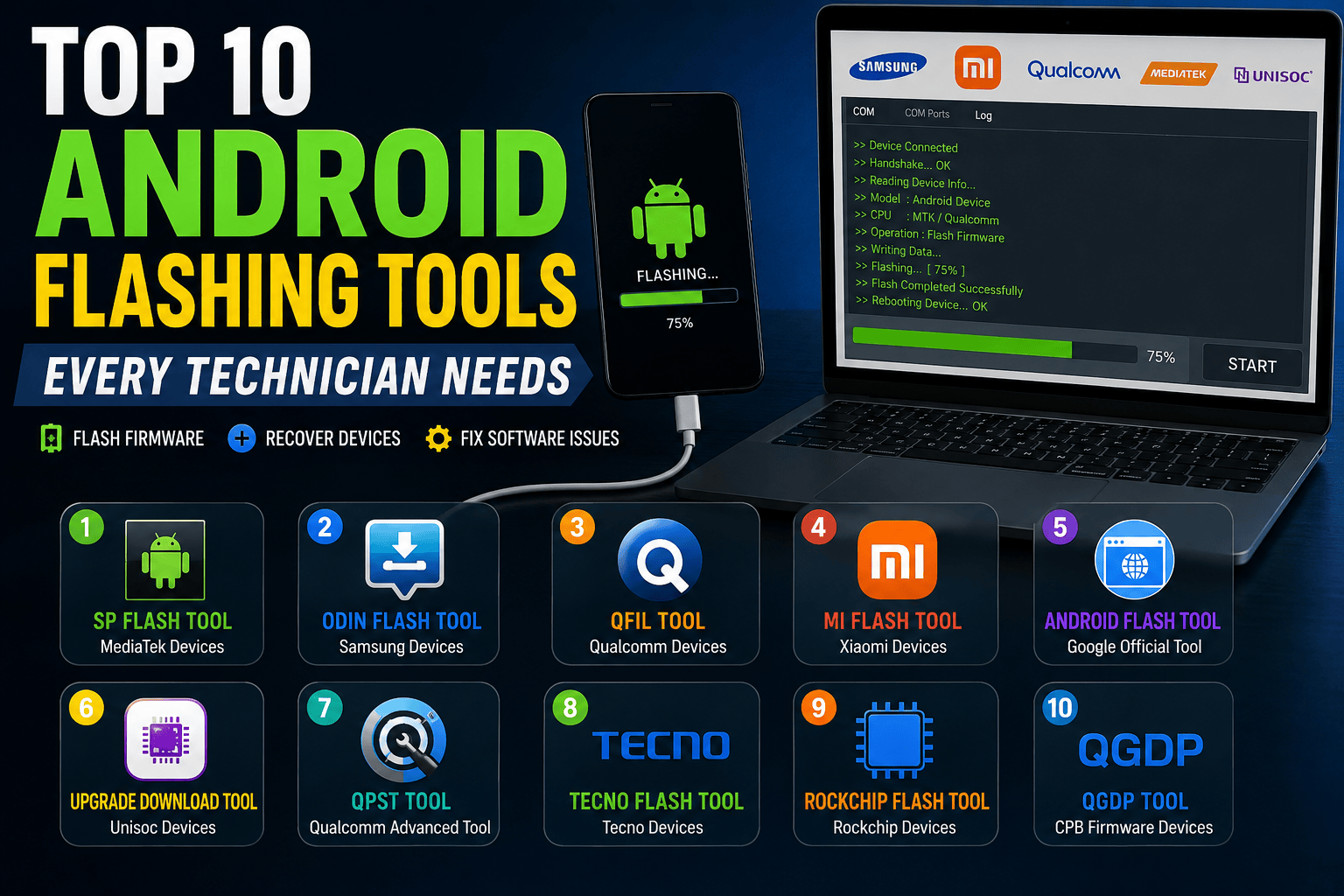
One of the biggest myths in mobile repair is that you need expensive professional boxes to fix dead phones. In reality, most modern Android devices can be repaired using free software tools provided by manufacturers or the repair community. The key is using the correct tool for your chipset and device model.
| Tool | Supported Devices | Cost |
|---|---|---|
| SP Flash Tool | MediaTek Phones | Free |
| QFIL | Qualcomm Phones | Free |
| Odin | Samsung Devices | Free |
| Fastboot | Android Devices | Free |
| ADB Tools | Android Devices | Free |
Computer Requirements
A Windows PC remains the preferred platform because most flashing utilities are designed specifically for Windows environments. A stable USB connection and original cable are equally important. Poor quality cables often cause flashing failures that can worsen existing problems.
USB Drivers and Firmware Files
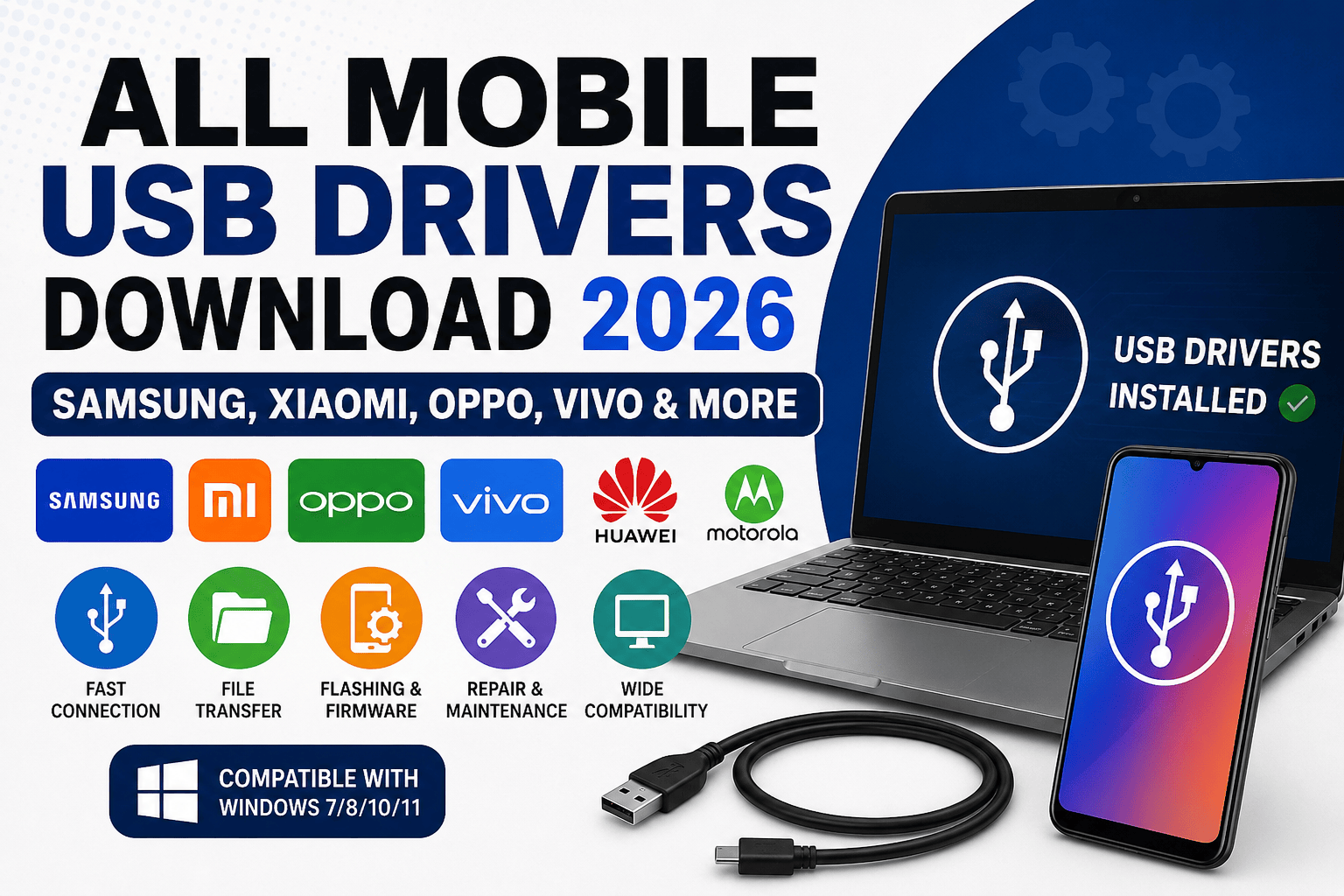
Installing the correct USB drivers is crucial. Without proper drivers, the computer cannot communicate effectively with the phone. Always download official firmware matching your exact model number before beginning any repair procedure.
Fixing MediaTek Dead Phones Using SP Flash Tool
MediaTek devices are among the easiest Android phones to recover without a repair box. SP Flash Tool communicates directly with the phone’s BootROM mode, allowing firmware restoration even when the phone appears completely dead. This capability has made SP Flash Tool one of the most popular utilities among repair technicians worldwide.
The process begins by downloading the correct stock firmware and loading the scatter file into SP Flash Tool. Once configured, the phone can often be detected simply by connecting it while powered off. The software then writes fresh firmware directly to the device’s storage, replacing corrupted partitions.
Steps to Flash MediaTek Devices
- Install MediaTek USB drivers.
- Download SP Flash Tool.
- Extract stock firmware.
- Load scatter file.
- Click Download.
- Connect powered-off phone.
- Wait for flashing completion.
- Disconnect and boot device.
Many devices that seem permanently dead can be revived within minutes using this method.
Fixing Qualcomm Dead Phones Using QFIL
Qualcomm devices offer another powerful recovery method through Emergency Download Mode, commonly known as EDL Mode. This mode allows communication with the device even when normal boot processes fail completely. Because EDL operates at a very low hardware level, technicians frequently use it to recover severely bricked smartphones.
QFIL, part of Qualcomm’s software package, enables firmware flashing through EDL mode. Once the device enters EDL, the tool can rewrite corrupted partitions and restore functionality. This approach is especially effective after failed firmware upgrades or incorrect ROM installations.
EDL Mode Repair Procedure
- Install Qualcomm drivers.
- Open QFIL software.
- Select firmware package.
- Enter EDL mode.
- Connect USB cable.
- Verify COM port detection.
- Start flashing process.
- Reboot device.
Successful flashing often restores the phone to factory condition.
Repairing Samsung Dead Phones Without Box
Samsung smartphones remain among the most widely repaired Android devices. Fortunately, Samsung provides Download Mode, which works seamlessly with Odin software. This combination allows firmware restoration without requiring professional repair hardware.
Odin communicates directly with Samsung bootloaders and can reinstall complete firmware packages. Many boot failures caused by interrupted updates can be resolved within a single flashing session. Samsung technicians frequently rely on Odin because it provides reliable communication and supports a wide range of Galaxy devices.
Using Odin Flash Tool
The typical procedure involves:
- Installing Samsung USB drivers
- Downloading official firmware
- Opening Odin
- Loading AP, BL, CP, and CSC files
- Entering Download Mode
- Flashing firmware
After completion, the device usually restarts automatically and begins optimizing applications.
Preventing Future Dead Boot Issues
Repairing a dead Android phone is valuable, but preventing future failures is even more important. Many dead boot situations occur because users interrupt firmware updates, flash unofficial ROMs, or use unreliable software tools. Treat your phone’s firmware like the foundation of a house. If that foundation becomes unstable, everything built on top of it becomes vulnerable.
Always verify firmware compatibility before flashing. Keep battery levels above 50% during software updates. Avoid disconnecting USB cables during flashing procedures. Use trusted firmware sources and maintain regular backups. These simple habits dramatically reduce the risk of future problems.
Another smart strategy involves avoiding unnecessary modifications. Rooting, custom recoveries, and experimental ROMs can provide exciting features, but they also introduce additional risks. For business users and everyday consumers, stability often outweighs customization.
Conclusion
Fixing a dead Android phone without a box is entirely possible in many situations. Modern recovery tools such as SP Flash Tool, QFIL, Odin, Fastboot, and ADB allow technicians and enthusiasts to restore software-bricked devices using only a computer and USB cable. The most important step is identifying whether the problem is software-related or hardware-related before beginning repairs.
By understanding emergency boot modes, installing proper drivers, and using the correct firmware, you can successfully revive many dead Android devices without investing in expensive repair equipment. When software solutions fail, professional hardware diagnostics may still be necessary, but countless phones that appear permanently dead can often be brought back to life through careful firmware restoration.
FAQs
1. Can a completely dead Android phone be repaired without a box?
Yes. Many software-bricked devices can be recovered using SP Flash Tool, QFIL, Odin, or Fastboot without professional boxes.
2. What is the difference between a soft brick and a hard brick?
A soft brick usually allows access to recovery or boot modes, while a hard brick appears completely dead but may still communicate through emergency modes.
3. Is flashing firmware safe?
Yes, when using the correct firmware for the exact device model and following instructions carefully.
4. Which tool is best for MediaTek devices?
SP Flash Tool remains the most widely used and effective solution for MediaTek smartphone recovery.
5. How do I know if my phone has a hardware problem?
If the device is not detected by a PC, overheats, shows signs of water damage, or has power IC faults, hardware repair may be required.