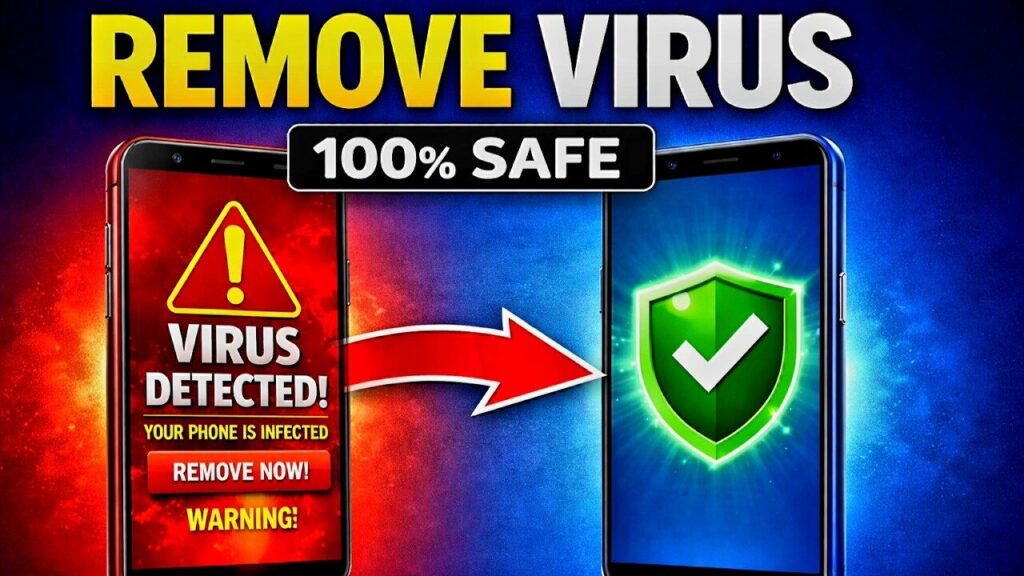
Android phones are powerful, but they are also big targets for malware, spyware, adware, fake apps, banking trojans, and annoying pop-ups. Because your phone stores your contacts, photos, banking apps, passwords, emails, and private messages, even one bad app can create serious problems. The good news is that you can remove most Android viruses completely if you follow the right steps carefully.
According to Kaspersky, attacks on Android smartphone users increased by 29% in the first half of 2025 compared with the same period in 2024. Kaspersky also reported 197,738 Android malicious or unwanted software samples detected in Q3 2025 alone.
What Is an Android Virus?
An Android virus is usually not a traditional computer virus. Most Android infections are caused by malware apps, fake APK files, spyware, adware, SMS stealers, banking trojans, or apps that abuse permissions. These apps may look normal, but behind the scenes they can show pop-up ads, steal data, track your activity, read messages, or redirect your browser.
The most common problem starts when users download apps outside the Google Play Store. However, even official app stores are not perfect, so you still need to check reviews, developer names, permissions, and app behavior. Google recommends removing apps you do not trust, do not need, or did not get from the Play Store.
Signs Your Android Phone Has a Virus
Your Android phone may have malware if it suddenly becomes slow, overheats, drains battery quickly, opens strange websites, shows random ads, installs unknown apps, or uses too much mobile data. You may also notice that your browser homepage changes by itself or your phone sends messages you did not write.
Another major warning sign is permission abuse. For example, a flashlight app does not need access to SMS, contacts, Accessibility, or device admin rights. If a simple app asks for deep system control, treat it like a red flag.
Step 1: Turn Off Internet Access
First, disconnect your phone from Wi-Fi and mobile data. This stops suspicious apps from sending data, downloading more malware, or communicating with remote servers. Think of it like closing the gate before cleaning the house.
After that, avoid logging into banking apps, email accounts, crypto wallets, or social media until you finish cleaning the device. If spyware is active, typing passwords too early may expose your accounts.
Step 2: Restart Your Phone in Safe Mode
Safe Mode starts your Android phone with only essential system apps. This makes it easier to remove malware because many third-party apps will not run. Malwarebytes also recommends Safe Mode as a key step when removing malware from Android devices.
To enter Safe Mode, press and hold the power button, then press and hold Power off until the Safe Mode option appears. On some Samsung, Xiaomi, Tecno, Infinix, Huawei, or Oppo phones, you may need to restart and hold the volume down button while the phone boots.
Step 3: Delete Suspicious Apps
Now go to Settings > Apps and review every installed app. Remove anything you do not recognize, especially apps installed recently before the problem started. Pay close attention to fake cleaners, free VPNs, battery boosters, APK installers, adult apps, modded apps, “RAM booster” apps, and apps with no clear icon or strange names.
Google’s official Android malware removal guidance says users should uninstall apps they do not need, do not trust, or did not get from Google Play.
Step 4: Clear Browser Cache and Downloads
Many Android “virus” problems are actually browser hijackers, malicious notifications, or infected downloads. Open Chrome or your main browser and clear browsing data, cache, cookies, and site settings. Then open your Downloads folder and delete suspicious APK files, ZIP files, unknown documents, or anything you did not intentionally download.
Also check browser notifications. Go to Chrome > Settings > Site settings > Notifications and block websites you do not recognize. Many fake virus alerts come from browser notifications, not from real antivirus warnings.
Step 5: Enable Google Play Protect
Open the Google Play Store, tap your profile picture, select Play Protect, and run a scan. Make sure Play Protect is turned on. Google says Play Protect can scan apps and help protect Android users from harmful software.
This step is important because Play Protect checks apps installed from different sources. It may warn you about risky apps, harmful permissions, or known malware.
Step 6: Run a Trusted Malware Scanner
Install a trusted mobile security app from the Google Play Store only. Good options include Malwarebytes, Bitdefender, Avast, ESET, Kaspersky, or Norton. Malwarebytes says Android malware removal can include clearing cache, rebooting in Safe Mode, removing suspicious apps, changing passwords, enabling Play Protect, and running a trusted antivirus scan.
Avoid random “virus cleaner APK” websites. Many fake antivirus apps are malware themselves. Always check the developer, reviews, update date, permissions, and download source.
Step 7: Remove Dangerous Permissions
Go to Settings > Privacy > Permission Manager and review sensitive permissions such as SMS, Contacts, Camera, Microphone, Location, Accessibility, Notification Access, and Device Admin Apps. Remove access from apps that do not truly need it.
Accessibility permission is especially dangerous when abused. Some malware uses Accessibility to read screens, click buttons, steal banking codes, or prevent uninstalling. If a suspicious app has Accessibility access, turn it off immediately before uninstalling the app.
Step 8: Change Your Passwords
After cleaning your phone, use another trusted device to change your important passwords. Start with Google, email, banking, Facebook, WhatsApp, TikTok, Instagram, PayPal, and any work accounts. Also enable two-factor authentication where possible.
This step matters because malware may have already stolen login details. Removing the virus is only half the job. Securing your accounts closes the door behind the attacker.
Step 9: Update Android and Apps
Go to Settings > System > Software Update and install the latest Android security update available for your phone. Then update all apps from the Google Play Store. Updates patch security holes that malware can abuse.
If your phone no longer receives updates, be extra careful. Older Android versions are easier to attack because security patches may be missing.
Step 10: Factory Reset If Needed
If pop-ups, redirects, unknown apps, or suspicious behavior continue after all steps, back up your important files and perform a factory reset. Google says users may need to reset the Android device if signs of malware continue.
Before resetting, back up photos, videos, contacts, and important documents. Do not back up unknown APK files or suspicious folders. After the reset, reinstall apps only from Google Play and avoid restoring questionable apps automatically.
How to Prevent Android Viruses
The best protection is simple: install apps only from trusted sources, avoid modded APKs, keep Play Protect on, update your phone, use strong passwords, and never allow suspicious permissions. Do not click fake prize links, WhatsApp scam links, “your phone has virus” pop-ups, or unknown SMS links.
Also, keep your phone clean. Fewer apps mean fewer risks. If you do not use an app, remove it. Your Android phone should feel like a clean toolbox, not a messy garage full of unknown wires.
Conclusion
Removing a virus from an Android phone completely is possible when you work step by step. Start by disconnecting the internet, entering Safe Mode, deleting suspicious apps, clearing browser data, enabling Play Protect, scanning with a trusted security app, reviewing permissions, changing passwords, updating your phone, and factory resetting only when necessary.
The safest Android phone is not the one with the most “cleaner” apps. It is the one with trusted apps, updated software, careful permissions, and a smart user behind the screen.
FAQs
1. Can Android phones really get viruses?
Yes. Android phones can get malware, spyware, adware, banking trojans, and harmful apps, even though they are not always traditional viruses.
2. What is the fastest way to remove malware from Android?
Restart in Safe Mode, uninstall suspicious apps, enable Play Protect, and run a trusted antivirus scan from the Google Play Store.
3. Will factory reset remove all Android viruses?
A factory reset removes most malware, but you must avoid restoring suspicious apps or infected APK files after the reset.
4. Why do pop-up ads keep appearing on my Android phone?
Pop-ups usually come from adware apps, browser notification spam, or malicious websites allowed in Chrome notification settings.
5. Is it safe to download APK files from websites?
It is risky. APK files from unknown websites can contain malware, spyware, or fake apps. Use Google Play whenever possible.