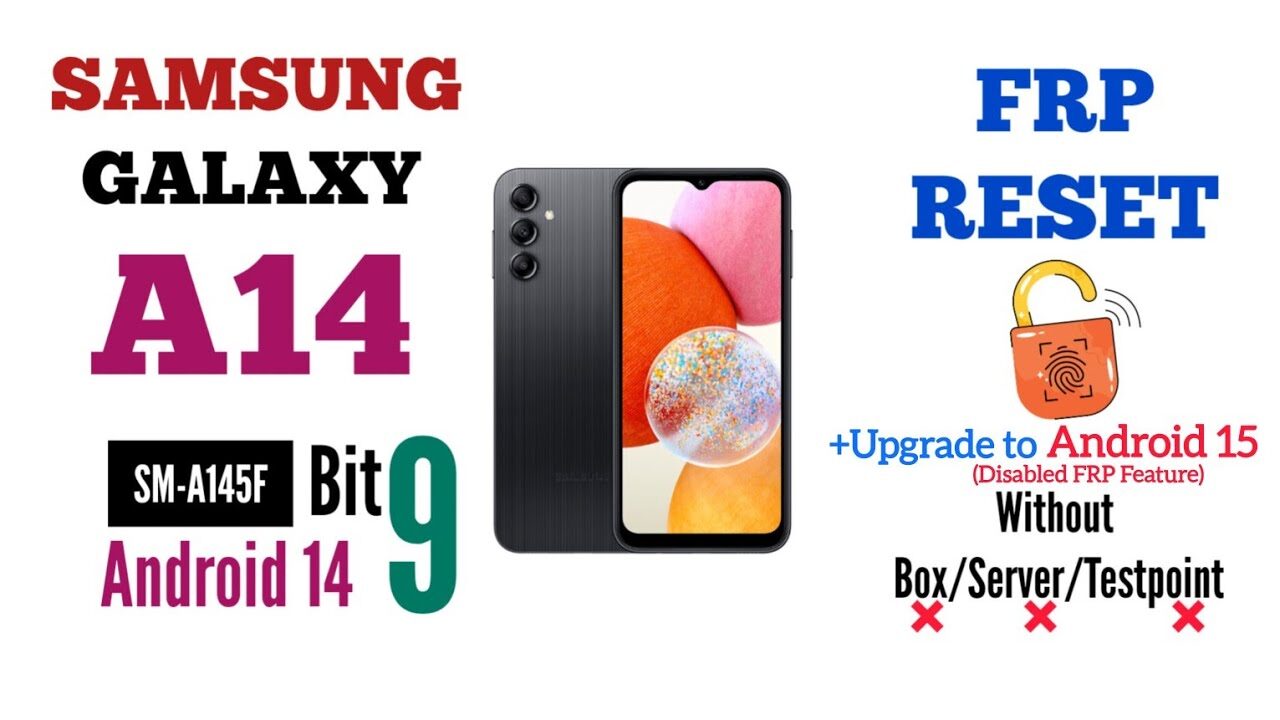
When dealing with the Samsung Galaxy A14 SM-A145F U9 FRP Reset Firmware, it is important to understand what FRP actually is and why many technicians search for U9 firmware files. FRP, which stands for Factory Reset Protection, is a security feature introduced by Google to prevent unauthorized access after a factory reset. Once a Google account is added to the device, FRP becomes active automatically. If the phone is reset without removing the Google account, the device will ask for the previously synced credentials during setup.
The Samsung Galaxy A14 SM-A145F has become one of the most popular budget Samsung smartphones worldwide. Since many users forget their Google account credentials or purchase second-hand devices, FRP lock issues have become common. As a result, technicians often rely on firmware-based methods to restore functionality and regain access to the device legally. The SM-A145F model is powered by the MediaTek Helio G80 processor and originally launched with Android 13. Later firmware updates introduced Android 14 and newer security patches. Firmware releases for this model continue to be updated through Samsung’s official channels.
What Does U9 Mean on Samsung Firmware?
Samsung firmware versions include a binary number, commonly known as the bootloader version. In the firmware build number, the digit before the last letters often indicates the binary version. For example, firmware versions containing U9 represent Binary 9 firmware.
Understanding the binary version is critical because Samsung devices generally do not allow flashing a lower bootloader version. This means that if your Galaxy A14 currently runs Binary U9 firmware, you cannot safely downgrade to Binary U8, U7, or older releases. Attempting to do so may result in flashing errors or device protection warnings.
Technicians always verify the binary version before downloading firmware. This simple step prevents compatibility issues and reduces the risk of failed flashing attempts. When searching for FRP reset firmware, always ensure that the firmware binary matches the device’s current bootloader version.
Why Technicians Use FRP Reset Firmware
Firmware-based FRP solutions remain popular because they are relatively safe compared to unauthorized modifications. A properly flashed firmware package can help repair software problems, remove boot loops, restore system partitions, and prepare the device for supported FRP removal procedures.
Common situations where technicians use U9 firmware include:
- Forgotten Google account credentials
- Device stuck on FRP verification screen
- Software corruption after an update
- Boot loop issues
- Failed rooting attempts
- Device recovery after malware infection
Many repair professionals prefer official Samsung firmware because it preserves device stability while maintaining compatibility with Samsung’s security architecture.
Samsung Galaxy A14 SM-A145F U9 Firmware Information

| Specification | Details |
|---|---|
| Device Model | Samsung Galaxy A14 |
| Model Number | SM-A145F |
| FIRMWARE FILE PASSWORD | Download Download |
| Android Version | Android 14 TO Android 15 |
| UI Version | One UI Core |
| Security Feature | Google FRP Protection |
| Flash Tool | Odin |
| Binary Version | U9 |
Before downloading any firmware, verify the exact model number under Download Mode. Flashing firmware intended for another model can permanently damage the device software.
How to Flash Samsung Galaxy A14 SM-A145F U9 Firmware
Flashing firmware requires preparation and attention to detail. Although the process is straightforward, skipping steps can lead to unnecessary complications.
First, download the correct firmware package for your region and binary version. Next, install Samsung USB drivers on your computer. After that, extract the firmware package and launch Odin Flash Tool. Place the phone into Download Mode by using the appropriate button combination. Connect the device to the PC and wait for Odin to detect it.
Once the device appears in Odin, load the firmware files into their corresponding slots:
- BL → Bootloader file
- AP → System file
- CP → Modem file
- CSC or HOME_CSC → Country and carrier configuration
After everything is loaded correctly, click Start and wait for the flashing process to complete. The phone will reboot automatically when finished.
A successful flash can restore software functionality and prepare the device for additional troubleshooting if FRP remains active.
Important Safety Precautions
Many users rush into firmware flashing without taking precautions. This often results in avoidable problems. Before proceeding, ensure that the battery level is above 50%. Use a reliable USB cable and avoid disconnecting the device during flashing.
It is equally important to back up any accessible data. Firmware installation may erase user information depending on the selected CSC file. HOME_CSC is generally used to preserve data, while CSC performs a clean installation.
Always download firmware from trusted sources and verify that the package matches the SM-A145F model. Using incorrect files can trigger flashing failures or software instability.
Professional technicians also recommend reading firmware release notes before installation. Samsung regularly updates security patches, bootloader versions, and system components, which can influence compatibility and repair procedures. Recent firmware listings show continued updates for the Galaxy A14 series, including Android 14-based releases and newer bootloader revisions.